Use an RSS or Atom feed to share new articles to your connected social channels or blog destinations. For example, a newsroom can connect one feed to X and Facebook without choosing a fixed time for every article.
Open RSS feeds in the dashboard, or choose RSS feeds on the main Auto Post page.
Set up notifications with a 15-minute backup
- Open Publishing → RSS feeds → Add RSS feed in the dashboard. Paste the publisher's public RSS or Atom feed URL, rather than its ordinary homepage.
- Choose your connected channels and review the content. Publish feed content preserves the supplied text, with destination formatting and length limits. Customize with AI rewrites it using your instructions.
- Under Advanced publishing settings, review Feed notifications + 15-minute backup. For an existing workflow, choose Use notifications + 15-minute backup if you want to replace its current general check schedule. Explicit schedules you set for individual channels stay in place; review those separately.
- Review the start time, any end date, media and required approvals, then save. Saving a preview alone does not subscribe to notifications or publish.
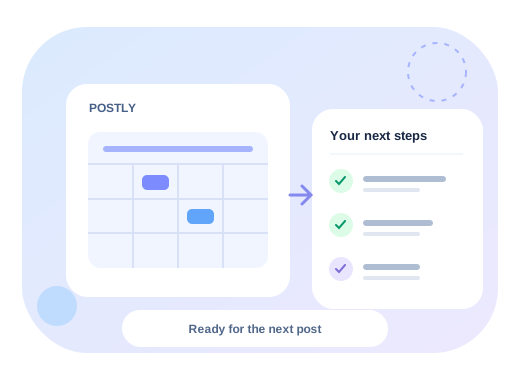
At the first active scheduled run, Postly looks for a WebSub hub and a feed self-link. If the publisher's hub accepts and verifies the subscription, it can notify Postly of updates. Notifications can wake an unused publishing window sooner. Checks every 15 minutes continue as a backup, including when a notification is missed or the hub is unavailable. Feeds without WebSub use those scheduled checks.
Notifications are best effort, not a promise of instant publication. A completed 15-minute publishing window waits for the next check. Queue load, provider limits, approvals, paused workflows, disconnected channels and publishing errors can delay or prevent delivery. Existing workflows keep their saved schedule until you change it.
How to find feeds that send notifications
Start with the publisher's RSS or Atom link, often shown in its footer, subscribe page or help pages. Ask the publisher whether that exact feed supports WebSub. A feed reader's notifications do not necessarily mean the feed itself offers WebSub.
For a technical check, inspect the feed's HTTP Link header or its XML metadata for both rel="hub" and rel="self". The hub is the notification service; the self-link identifies the feed. Postly requires a public HTTPS hub and public HTTP or HTTPS feed/topic URLs. The hub must accept the subscription and sign its notifications. A feed URL by itself, or an RSS icon, does not prove support.
If you publish with WordPress, the WebSub plugin in the official WordPress directory is one way to add publisher-side support. Install and configure it on your own site, then check the resulting feed. Installing a plugin does not guarantee a particular hub will accept every subscription. For other publishing systems, ask your provider which feeds expose WebSub, or read the WebSub discovery specification.
You do not need to find a special feed to use Postly: ordinary public RSS and Atom feeds can still use the 15-minute check schedule. You cannot switch on notifications for someone else's feed if its publisher does not offer them.
Which articles are published?
Each workflow prepares up to one new feed item per recurring publishing window for its selected destinations. The first run starts with the newest available item, avoiding an automatic import of the publisher's whole archive. Later runs pick new items in order from oldest to newest, using the workflow's saved item history to avoid repeats.
A valid feed with no items waits for a later check without AI generation or source-failure retries. A malformed feed or a page that is not RSS or Atom still needs correction.
If five articles arrive together, they can take five windows to work through. Feed items that disappear from the publisher's feed before Postly reads them may be missed. Article edits with an unchanged item identifier are not automatically republished as a new article. Check workflow history and delivery results; do not retry an uncertain publication just to see whether it worked.
Resource use and limits
A schedule running every 15 minutes plans 96 checks per day per active workflow. This is not zero cost. Postly sends conditional requests with the publisher's ETag or Last-Modified value when available, allowing unchanged feeds to return a small 304 Not Modified response. Not all publishers support this; some return the full feed each time.
Overlapping checks for the same exact public feed URL can share a short-lived server cache and in-flight request. This cache is bounded and local to each running server process; it does not promise a single fetch globally across all users or servers. A supported feed shares one notification subscription across its workflows. Repeated notifications are coalesced, and notification fan-out is bounded; scheduled checks recover work missed by this optimization.
When no new item is found, the run skips AI text and image generation and does not send another copy of the article. New items still use ordinary publishing allowances and any AI features you selected. Publish feed content avoids AI text rewriting; selected AI media can still use credits. Feed downloads are limited to 2 MB, with timeouts and temporary backoff for rate-limited or unavailable publishers.
For a quieter feed, you can keep a slower custom schedule instead. Faster detection cannot make a publisher update its feed sooner. Leave the workflow paused when you do not want it to publish, and review the actual saved schedule in the RSS workflow list.