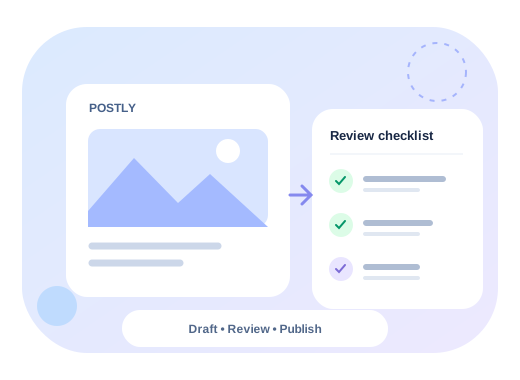
Notifications help teams stay operational after the schedule is set. They close the gap between "we queued it" and "we know what happened."
What notifications should tell you
- whether the post published successfully
- whether some destinations failed
- which post needs attention
- when the event happened
- where to investigate next
Why they matter
Without notifications, teams often notice issues too late. With them, operators can react quickly to failures, partial publishes, or urgent campaign changes.
Common notification surfaces
- dashboard alerts
- Slack
- Discord
Recommended usage
For solo operators
Use notifications as a confidence layer so you do not need to watch the dashboard constantly.
For teams
Send important outcomes into the channel where the team already coordinates work.
For agencies
Use notifications to catch client-facing issues before the client notices them first.
Pair notifications with these workflows
- approval workflow
- high-value scheduled launches
- recurring campaigns
- API or MCP automations
Notifications are especially important when publishing is being triggered by automation or AI. If a workflow runs without a human watching it live, the team still needs a clear way to see the outcome.
Good next guides
Deletion and accidental live posts
Deleting a post in Postly is separate from removing published content. DELETE /posts/{postId} and postly_delete_post only remove the post in Postly; a successful response does not confirm live removal on any platform. In the dashboard, choose Delete on Platforms for supported destinations before removing the post, and review each result. Unsupported content needs manual action. DEV articles move to drafts rather than being permanently deleted.
Keep the post in Postly and live links until you have verified removal. Do not interpret a publishing notification or an absent post in Postly as a deletion receipt. See platform support, permissions, and the agency recovery workflow.