
Open Products → Email to prepare a newsletter, choose a permission-based audience, test the message, and schedule delivery. For example, a shop can send a monthly product update to customers who asked for email news, then review delivery and engagement before deciding whether one follow-up is useful.
1. Choose your sending service
Postly Email manages sending from your verified domain with a separate Email subscription. Choose an active subscriber band with unlimited email sends. For example, four newsletters to 10,000 subscribers means 40,000 sends, while your subscriber count remains 10,000. Bands run through 500,000 active subscribers; contact us for Custom pricing above that. Duplicates count once across your owned workspaces. Unsubscribed, bounced and complained contacts do not count. Existing send-based subscriptions keep their existing allowance until you choose to change plans.
Unlimited email sends removes the monthly send allowance; approved sending speed and sender health still apply. Every band has the same sending-speed eligibility. Review capacity before planning a time-sensitive campaign. Review current sending limits and pricing.
Pro users can instead connect a supported email provider. Connected providers keep their own audiences, sender setup, reports, limits and billing. Connecting a provider does not copy its subscribers or exclusions into managed Postly Email.
2. Verify your domain and sender
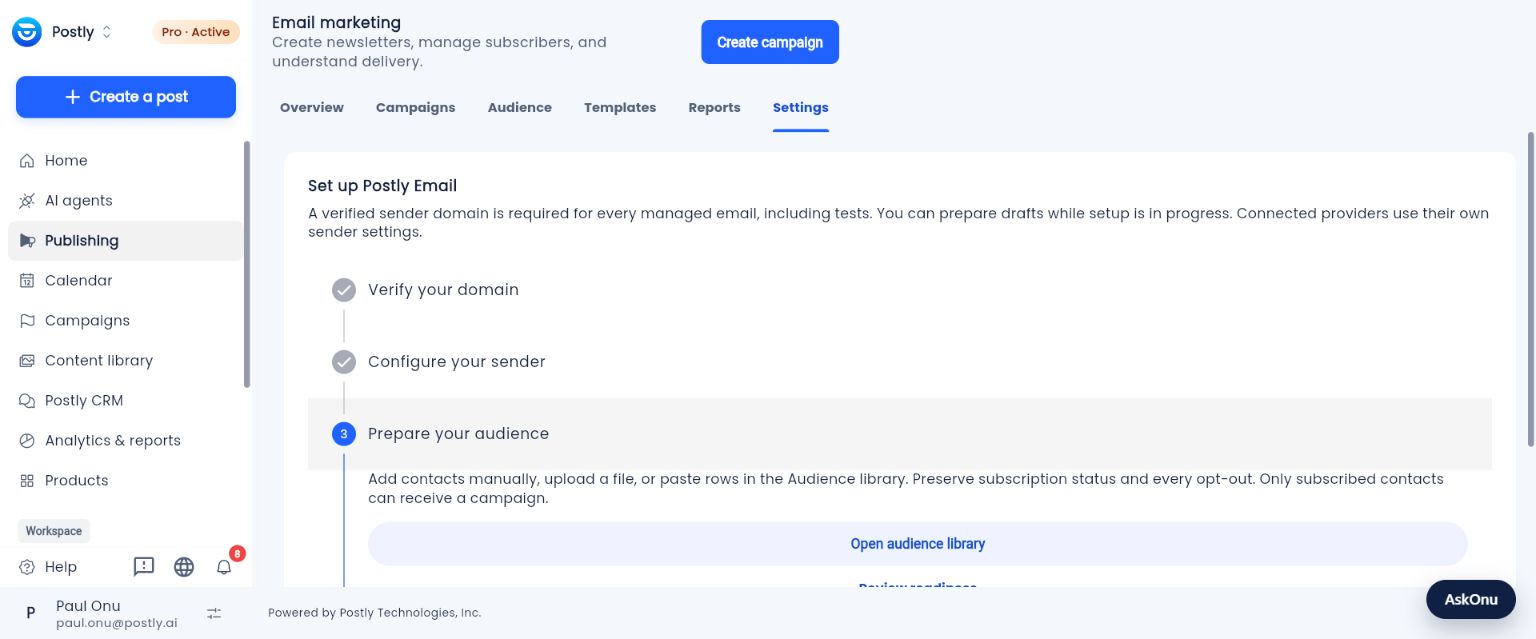
Open Settings. Add your sending domain and copy the exact ownership TXT and DKIM CNAME records into your domain's DNS settings. Preserve unrelated DNS and mail records. Return to Postly and select Check verification. DNS changes may take time to become visible.
After verification, save your sender name, a sender email on that domain, reply-to address and postal address. A verified domain is required for test emails as well as customer campaigns. Verification does not guarantee inbox placement or clear a reputation hold.
3. Bring every subscriber choice with you
Open Audience, or Content library → Audience → Email. Import your active subscribers and your old unsubscribe, bounce and complaint exports. Review the column mapping, permission source and import results. An account record or an email address alone does not establish marketing permission.
Upload one CSV, TSV or JSON file and review its column mapping. You do not need to split a 50,000-row audience or click Load more to import it. Keep the page open while the file uploads; after upload completes, processing continues in the background. Return to Audience imports for progress, exclusions, invalid row numbers, pause/resume controls and an estimated active processing time. The estimate depends on the observed rate and is not a delivery promise.
Imports support up to 250,000 rows and 20 MB of staged data, with three unfinished imports per workspace. These bounds protect processing capacity; they are separate from subscriber totals and monthly sending allowance. If an upload is interrupted, select the same file with the same mapping to resume. Uploaded staging data expires after seven days; import summaries remain for thirty days. Processing counts rows, so duplicate rows do not mean additional unique subscribers. Browsing an audience page does not control import progress.
Existing exclusions cannot be reversed by a later subscribed import. Lists and tags organize contacts without changing permission. Deleting a profile keeps an exclusion marker so a later import cannot silently subscribe it again. See Email contacts and lists for status filters, bulk membership changes and exports.
4. Write, preview and test
From Manage emails, choose Create campaign. Pick a design from a template category, choose Start from scratch, or Import HTML. Templates contain editable headings, text, images, buttons, dividers and spacers. Replace the example content and image links with your own before sending.
Move through Design → Sender → Subject → Audience → Send. Give the email an internal name, a clear subject and useful preview text. Review mobile and desktop previews. HTML import keeps the email in HTML mode so you can retain its layout and edit the source; unsafe content is removed on save. External stylesheets, scripts and browser-only features are unsuitable for email. Check the saved preview because email clients render HTML differently. Choose a list and optional tag, or explicitly select all subscribed contacts. Both list and tag must match when you use both.
Send the owner test and inspect the received message, including links, formatting, reply-to details and the unsubscribe footer. Test contacts stay outside ordinary audiences. Saving a draft or a template never sends it.
5. Review and schedule
Use Publish now or choose a future date, time and timezone. Review the subject, sender and audience before confirming. The scheduled time is the earliest dispatch time; capacity and safety holds can delay completion. A large campaign may span several days at the approved daily limit.
Only subscribed contacts are eligible. Exclusions are checked again during delivery, and the worker stops on an ambiguous provider result to reduce duplicate sends. Pause campaign stops at the next recipient boundary; a provider request already in progress may still finish. Review the result before attempting a recovery.
Recipients can use the unsubscribe link or supported one-click email controls. Opening an unsubscribe page does not change a preference until it is confirmed. An unsubscribe does not delete their account or content.
6. Read the report before following up
Choose an email's Report, or open Analytics/Deliverability, to review provider-accepted sends, confirmed deliveries, bounces, complaints, unique opens, unique clicks and recorded unsubscribes. An accepted send is not the same as confirmed delivery or arrival in the inbox.
Open rate is unique recipients with a recorded open divided by confirmed deliveries. Click rate uses unique recipients with a recorded click over the same denominator. For example, 25 unique opens among 100 confirmed deliveries is a 25% tracked open rate. A missing delivery denominator is unavailable, rather than an invented zero percent.
Privacy tools can inflate opens, blocked tracking can hide real readers, and link scanners can generate clicks. These measurements are useful signals, not proof that a person read or ignored your message. Feedback arrives asynchronously; an unavailable report is different from zero engagement.
Reports include daily delivery, open and click charts, tracked device categories, top links and a CSV export. Event charts cover the available recent tracking history; they are not fabricated from old totals. Unsubscribe attribution is available for campaign-specific preference links. Older unsubscribe links remain effective even when the original campaign cannot be attributed.
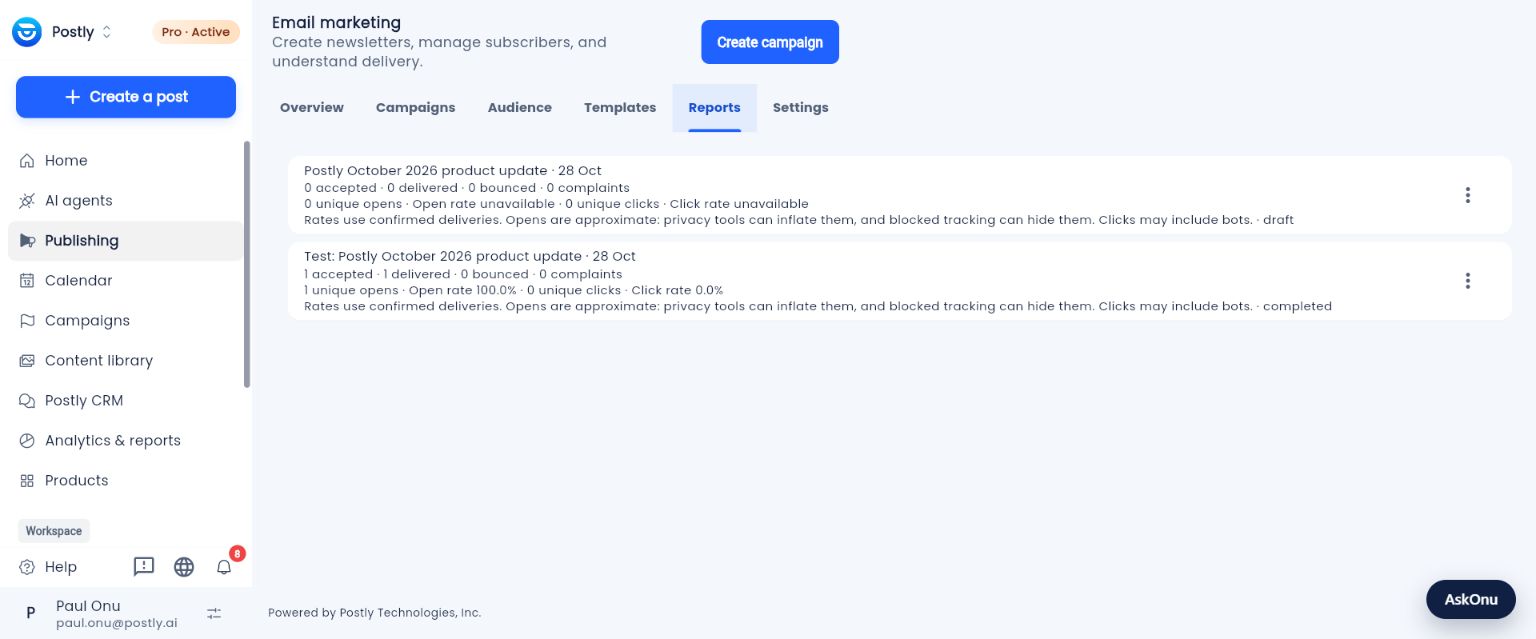
This screenshot shows an owner-only test with one confirmed delivery. A test sample of one is not a measure of a customer campaign's performance.
For a completed original campaign, choose Follow up with unengaged recipients from its menu. Review the new draft, choose a different subject and schedule it at least 48 hours after the original finished. Postly allows one follow-up per original campaign. Tests and follow-ups cannot start another follow-up.
At delivery, the follow-up includes only confirmed original recipients with no recorded open, click, bounce or complaint who still have permission to receive the message. New subscribers and uncertain original receipts are excluded. Late engagement and opt-outs are checked again at dispatch. Because tracking can miss real readers, use this option sparingly and send something worth receiving twice. This is a scheduled follow-up, not a recurring journey or a guarantee that the recipients did not read the original.
7. Keep emails organized
Manage emails keeps email drafts, scheduled campaigns, sending and sent emails together, separately from social posts. Search by name or subject, filter by status or folder, and use an email's menu to duplicate, rename, move to a folder, preview or open its report. A duplicate is a new draft; it does not copy delivery receipts or automatically resend the original. Archive completed, cancelled or draft emails to keep the active list clear; restore them when needed. Sent email reports remain attached to the original.
If sending needs attention, review Settings, the displayed capacity, subscriber band and service alerts. A permanent bounce suppresses the affected address; campaigns are reviewed when aggregate bounce or complaint thresholds are reached. Acknowledging an alert does not clear a sending hold or authorize a retry of an uncertain delivery.