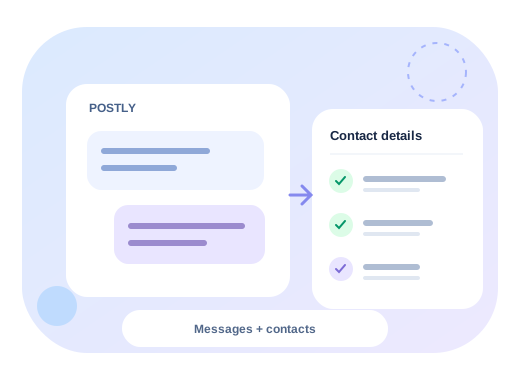
Connecting an account authorizes Postly to use it. Selecting a channel for CRM is a separate, intentional choice. New connections and ordinary account reconnections do not automatically select CRM channels.
Connect first, then select CRM channels
- Open Platform connections to connect or reconnect the account. Complete the provider's authorization flow and check that the account is usable.
- Open Postly CRM > Inbox > CRM channels. If no channels are selected, choose Select CRM channels in the empty state.
- Check the connected, supported channels you want in the inbox.
- Choose Save channels. Only saved, selected channels sync into CRM.
- Return to Auto-replies to check whether each Facebook or Instagram account is ready for the feature you want to use. Inbox selection alone does not prove that every messaging permission is available.
To stop CRM on a channel, uncheck it and save. Reauthorizing the social account later does not substitute for explicit CRM selection. Disconnect everywhere removes the shared account connection and stops its supported uses.
How channel limits work
Pro includes full CRM with a separate allowance equal to your publishing channel allowance. LTD customers still need the CRM add-on, and legacy subscribers can upgrade to Pro for full CRM. CRM selections do not use additional publishing slots.
For example, a plan with 30 publishing channels can select up to 30 supported channels for CRM. Using the same social account for publishing and CRM uses one publishing slot and one selection within the separate CRM allowance. Remaining allowance may also reflect usage in other workspaces owned by the account; it is not calculated from this workspace alone.
- Pro starts with a minimum of five publishing channel slots. Pro includes five CRM selections with those five publishing slots.
- An active CRM add-on retains a separate CRM allowance equal to the plan's channel entitlement. A plan with 30 channels can select up to 30 CRM channels within that separate allowance.
- Five slots do not mean five slots per workspace. Review usage across your account.
- If the allowance is full, selecting another channel opens the access dialog. You can still deselect a channel to release capacity.
- The server checks capacity again when you save. Another connection may have used the final available slot since the page opened.
- Reducing an allowance can release excess allocations. Review the current selections after a plan change.
See Pricing for the current plans. A count of available channels is different from confirmation that the provider permits a particular reply action.
After the explicit-selection reset
Existing CRM selections were reset as part of the explicit opt-in update. Publishing account connections were retained. Open CRM channels, choose the channels you intend to use, and save again. Old saved forms cannot restore the pre-reset selections.
Existing automation rules are retained, but a deselected CRM channel cannot run its replies. Check both the channel selection and the rule's Active status before inviting people to use a keyword.
Workspace and organization access
Organizations and workspaces are allowed by default. This does not select channels or give every member CRM permissions.
Only the account Owner can change workspace and organization access under CRM settings > Workspace access. Blocking an organization blocks its workspaces and releases their CRM allocations. Publishing connections remain available.
Owners and Admins can choose CRM channels in their permitted workspaces; custom roles need platform-management permission. Admins cannot remove Owner-controlled workspace restrictions. There is no separate CRM role to assign.
Other CRM pages remain available subject to your role, workspace access, and plan. They can be empty until data exists.