How to reorder post images before publishing
Change carousel and multi-image publishing order in the editor, compact preview and expanded media grid.
Reviewed 15 October 2026 · Postly product guide
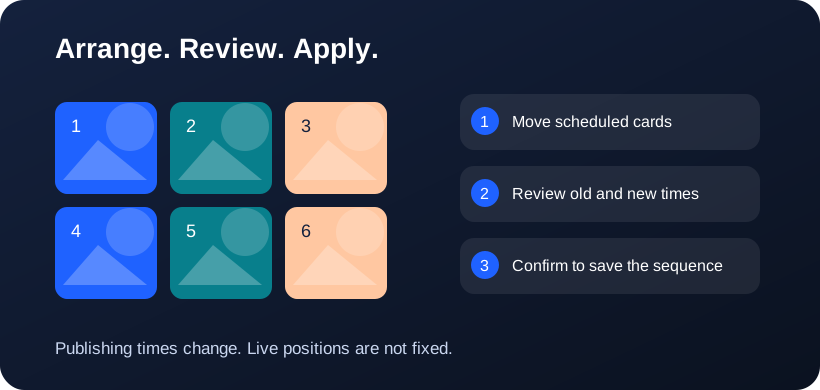
Make the intended first image obvious
The first image often introduces a carousel and may become its profile thumbnail. Put the strongest opening frame first, then arrange supporting images in a sequence that makes sense when read one at a time. Numbered thumbnails make the intended publishing position visible.
Move media where you are already reviewing
Drag a thumbnail in the editor or use its move menu. The compact and expanded media grids also support ordering for editable posts. Grid is the default overview; List gives each image more room, while Carousel lets you step through the sequence. These are Postly review layouts, not promises about a platform’s exact feed rendering.
Understand shared and account-specific changes
Reordering shared editor media updates destinations that still follow the shared media. Reordering a particular account’s preview creates an explicit order for that account. Review every selected account before publishing, especially when one uses different images or placement-specific media.
Check the saved result
After arranging, review the first image, alt text, media warnings and destination settings. Save the draft and reopen it to confirm the order. Publishing capabilities vary: a platform may accept a carousel, separate items or only one supported media format. Media order does not rearrange existing posts on a profile.
Frequently asked questions
Does dragging only change the preview?
For editable media, the controls update the post’s publishing order. Switching Grid, List or Carousel changes only the review layout.
Can I move images without dragging?
Yes. Use the move menu to move an item earlier or later, including when using a keyboard or touch interface.
Why does 3×4 look like 3×3 at the top?
Both have three columns. 3×4 adds a fourth row, giving 12 slots instead of 9. Scroll down to see the extra row. These dimensions control the Postly canvas, not a provider API setting.
Related workflows
- Explore the related Postly workflow
- Instagram grid planner: preview posts before scheduling
- TikTok content planner: plan videos and cover sequences
- Pinterest board planner: organize upcoming Pins
- 3×3, 3×4 or 4×4: choose a social planning grid
- Image grid splitter: turn one design into numbered posts
- Fix all post images: repair a batch before publishing
- Social planner APIs: Instagram, TikTok and Pinterest
Provider references
Provider capabilities and account permissions can change. These guides distinguish documented API functions from Postly planning controls.