Skip to content
X API Setup
Secure Connect

Connect X to Postly and unlock advanced publishing workflows.

Create your X developer app, configure authentication, add the Postly callback URL, and use your own website details when X asks for app information.

21+
X growth tools
5
Setup steps
2.0
Secure OAuth

Credential safety

Keep API keys private and paste them only inside Postly.

Callback / Redirect URL
https://api.postly.ai/v1/workspaces/oauth/callback/x.com
Website URL
https://example.com
Replace with your own website URL.
Terms URL
https://example.com/terms
Replace with your own terms of service URL.
Privacy URL
https://example.com/privacy
Replace with your own privacy policy URL.
Setup guide

Follow the exact X app flow.

Click any screenshot to view it full-screen while you configure credentials in the X developer console.

01

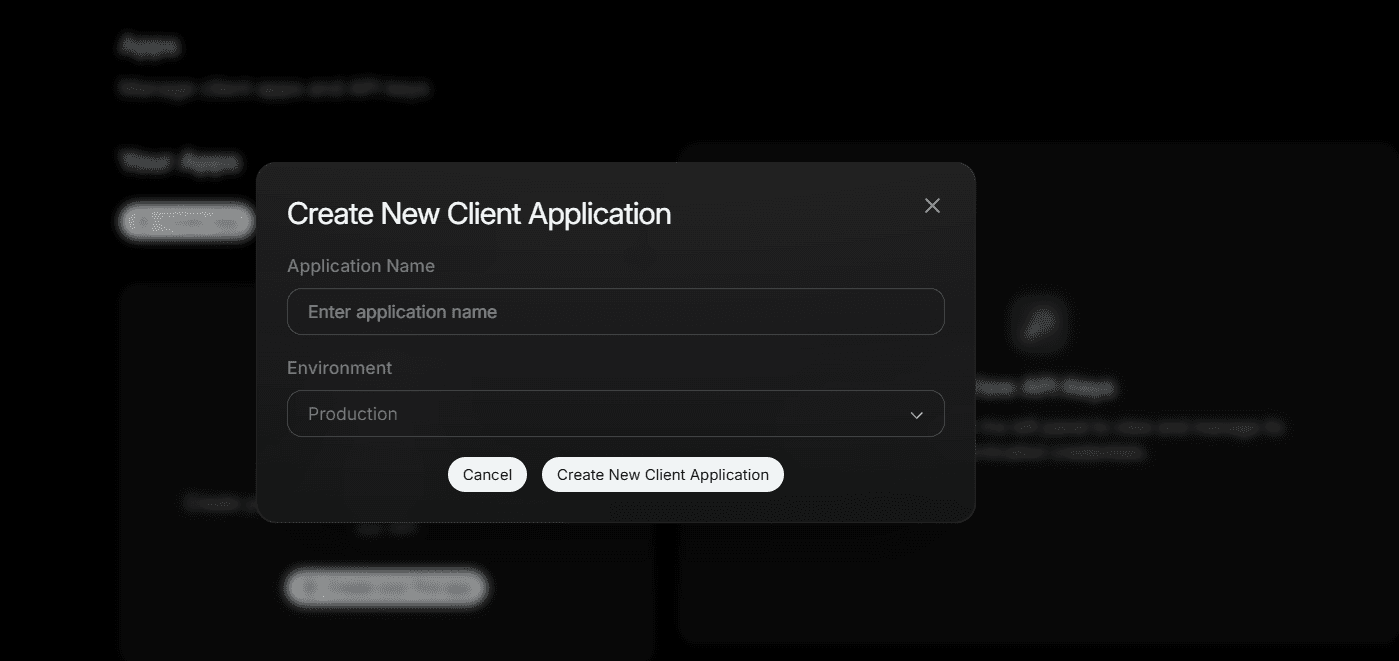
Create a new X app

Open the X Developer Console, go to Projects & Apps, then create a new client application.

Open X Developer Console
Application Name
Enter your app name
Environment
Production
Click to enlarge.
02

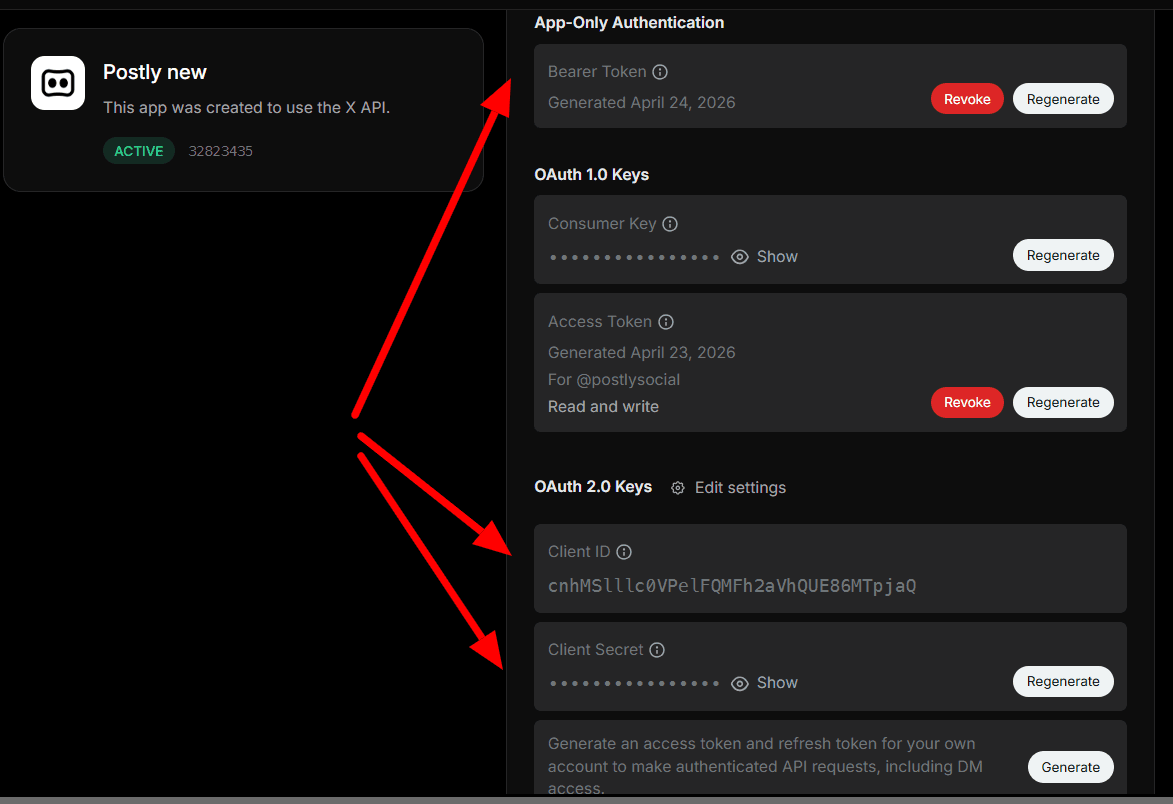
Copy your generated credentials

After creating the app, copy the credentials shown by X and save them securely. Then open the keys and tokens area for Bearer Token, OAuth 1.0 keys, and OAuth 2.0 keys.

Some credentials may only be shown once. Copy them exactly as displayed to avoid connection issues.
Bearer Token
Copy this if available
Client ID
Copy from OAuth 2.0 Keys
Client Secret
Copy from OAuth 2.0 Keys
Click to enlarge.
03

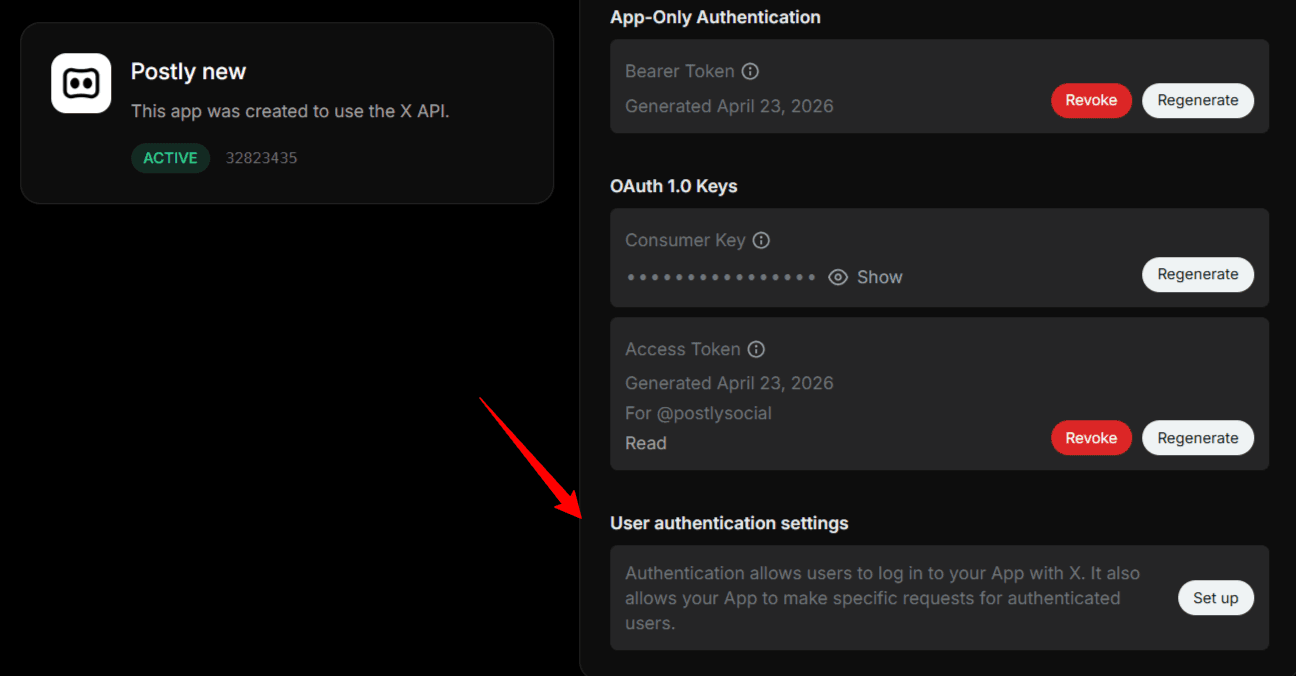
Set up user authentication

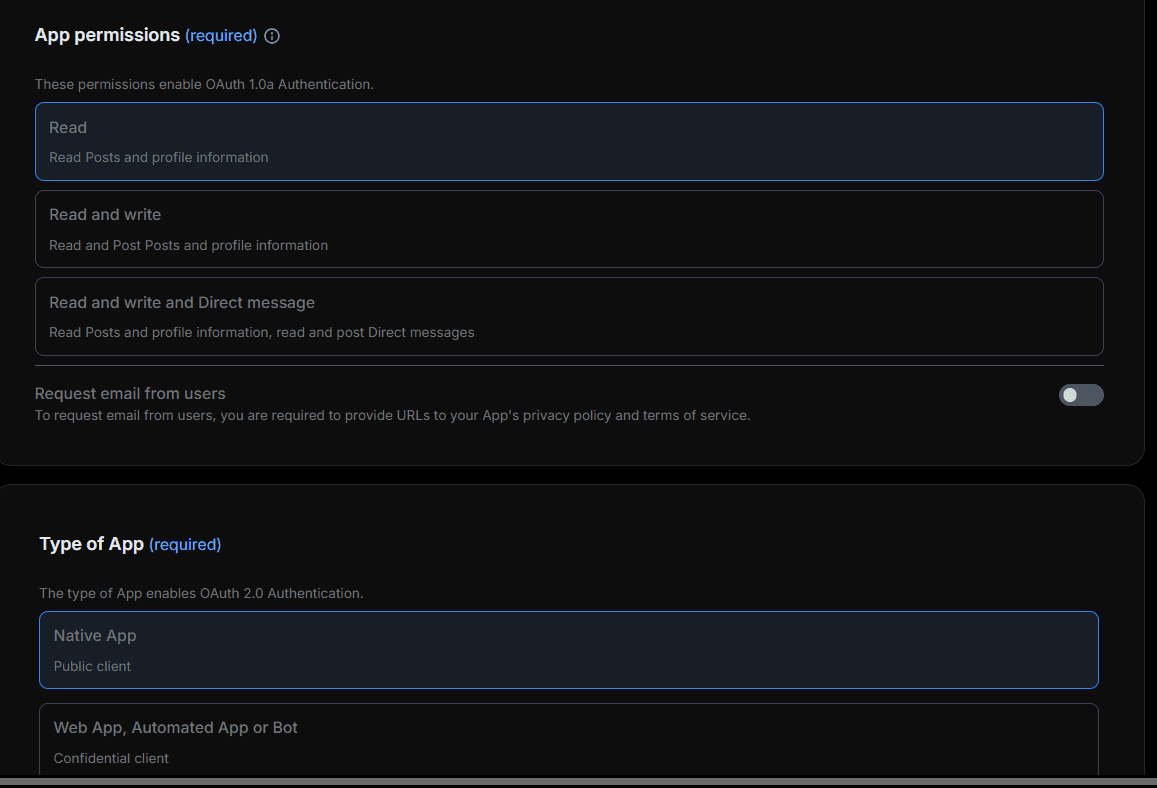
Click Set up under User authentication settings to configure permissions, app type, and callback details.

App permissions
Read and write
Type of App
Web App, Automated App or Bot
Click to enlarge.
Click to enlarge.
04

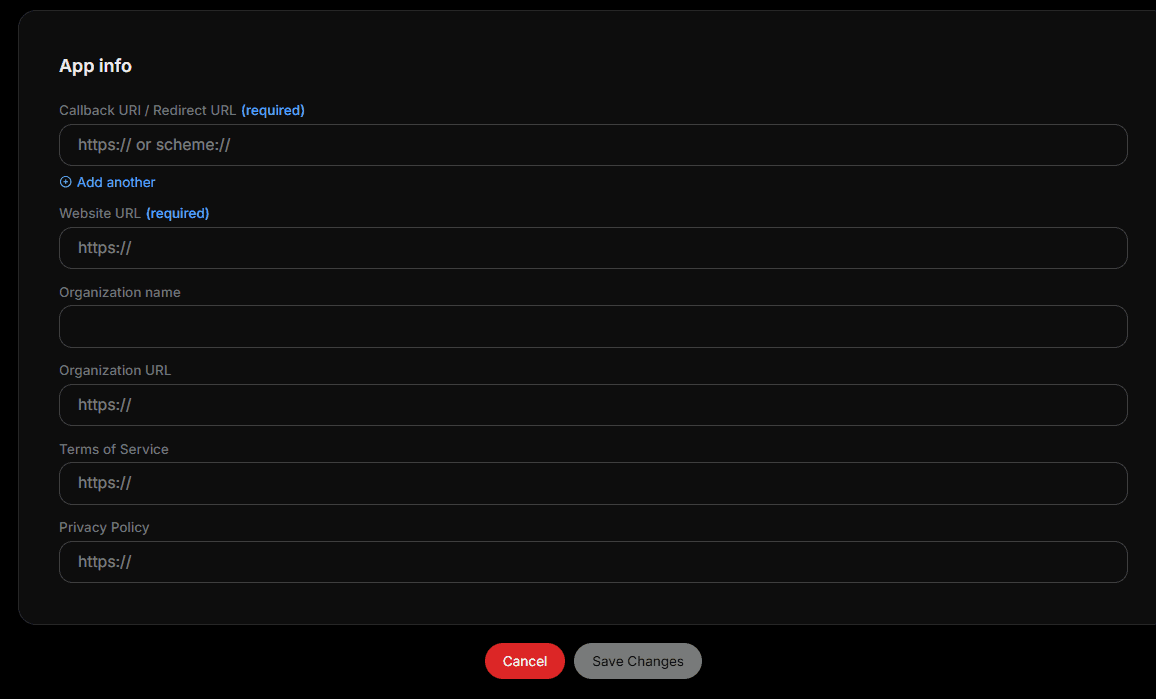
Enter app information

Fill in the callback URL, website URL, organization details, terms URL, and privacy policy URL, then save your changes. Use your own domain details; example.com is only a placeholder.

Callback URL / Redirect URL
https://api.postly.ai/v1/workspaces/oauth/callback/x.com
Website URL
https://example.com
Replace with your own website URL.
Terms of Service
https://example.com/terms
Replace with your own terms of service URL.
Privacy Policy
https://example.com/privacy
Replace with your own privacy policy URL.
Click to enlarge.
05

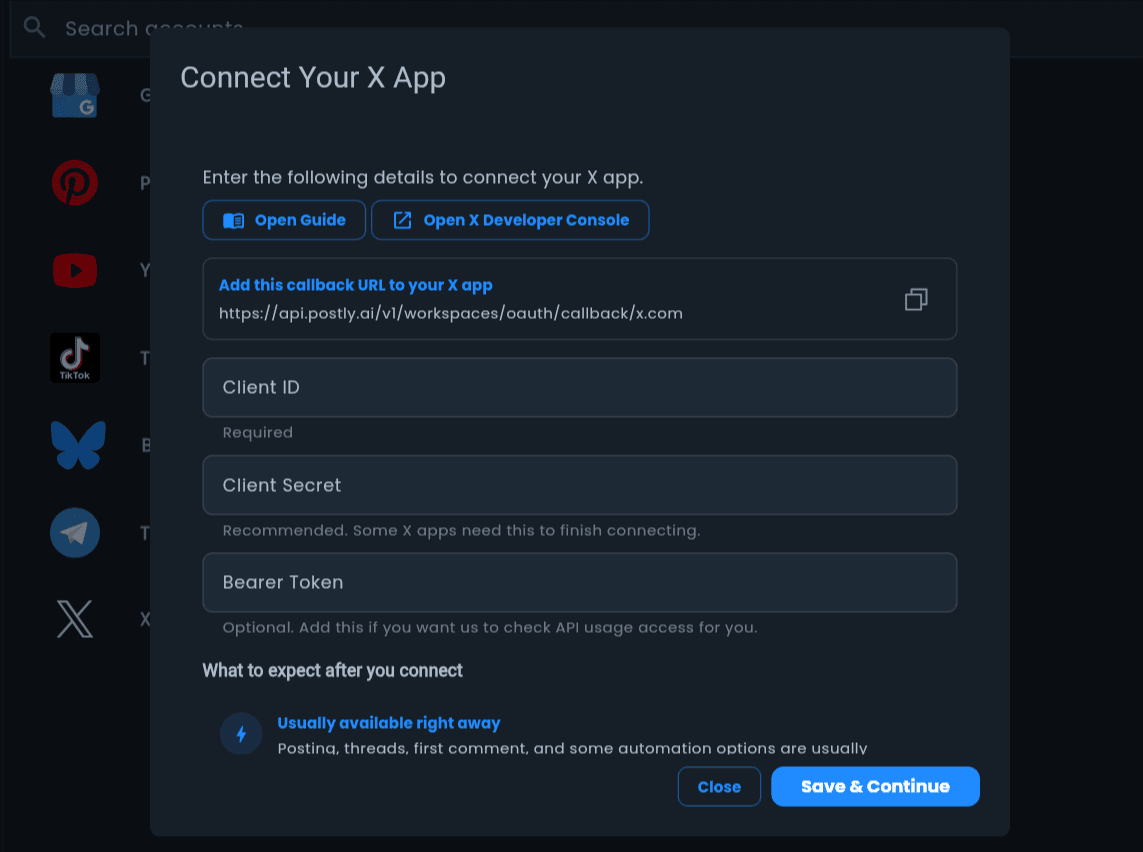
Connect your X app in Postly

Return to Postly, open the X connection modal, then paste your Client ID, Client Secret, and Bearer Token.

Client ID
Paste from X OAuth 2.0 Keys
Client Secret
Paste from X OAuth 2.0 Keys
Bearer Token
Paste from App-Only Authentication
Click to enlarge.
X Tools from Pricing.json

Advanced X workflows.

Features are fetched from the X Tools section in Pricing.json and grouped for easier scanning.

No matching X tools

Try another keyword or switch back to All X Tools.

Finish connecting X

Go to your Postly Dashboard, open Social Accounts, choose Connect X, paste your credentials, then save and continue.

Go to Dashboard