Skip to content
WhatsApp Business Platform

Publish WhatsApp templates from Postly

Connect WhatsApp Business with Meta Embedded Signup, reuse the existing Postly Editor, select an approved template, choose a saved contact list from Preview and track message status like any other publishing channel.

WhatsApp publishing is template-based. Postly will not treat WhatsApp like a group, page or feed. Users publish approved templates to saved contact lists, and replies are handled in a lightweight inbox because Meta API behavior requires reply handling.

Integration Steps

Meta Embedded Signup, managed by Postly

Users own the WhatsApp Business Account, phone number and Meta billing relationship. Postly manages the secure integration, token storage, webhook registration and channel mapping.

01

Click Connect WhatsApp in Postly

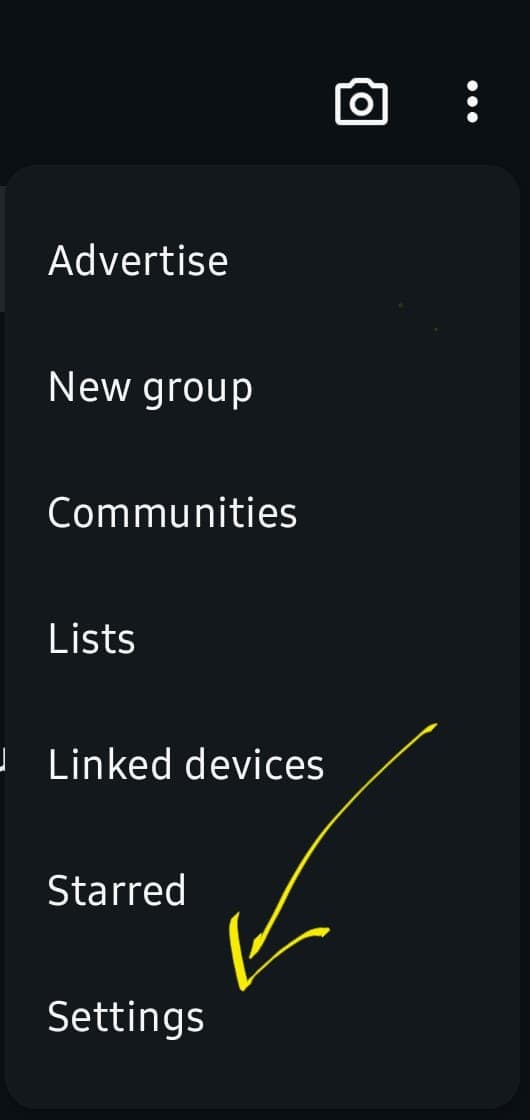
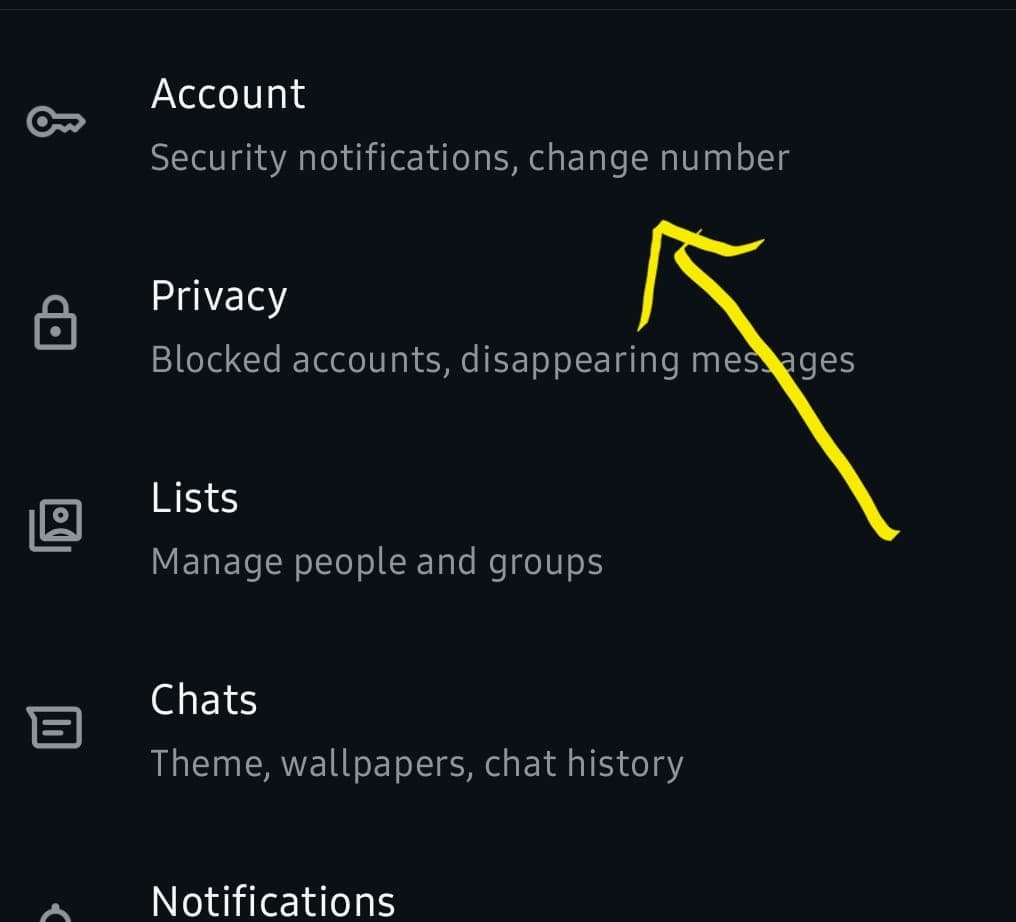
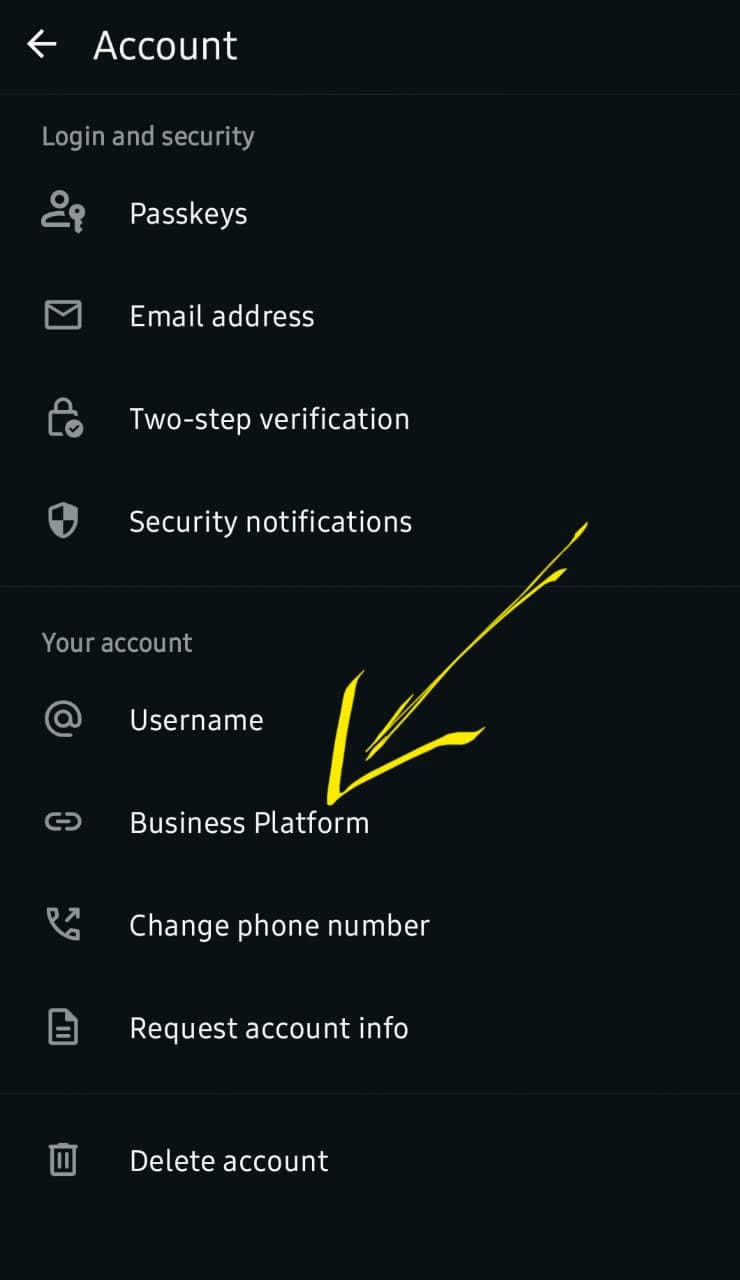
Start in Postly. The Meta Embedded Signup popup opens from the WhatsApp connection screen, so users do not need to paste API keys, access tokens, app secrets or webhook URLs manually.

Connect WhatsApp in Postly

Screenshot placeholder

Add the screenshot at /images/whatsapp/embedded-signup.png

02

Select or create Meta Business, WABA and phone number

In Meta, the user selects or creates the Meta Business, WhatsApp Business Account and phone number they want to connect. The user owns the WABA, phone number and Meta billing relationship; Postly manages the secure integration layer.

Read Meta Embedded Signup docs

Screenshot placeholder

Add the screenshot at /images/whatsapp/select-business.png

03

Approve WhatsApp permissions

Postly requests whatsapp_business_messaging and whatsapp_business_management so it can send approved template messages, access WhatsApp assets and complete the connection after onboarding.

Screenshot placeholder

Add the screenshot at /images/whatsapp/approve-permissions.png

04

Postly syncs the WhatsApp channel

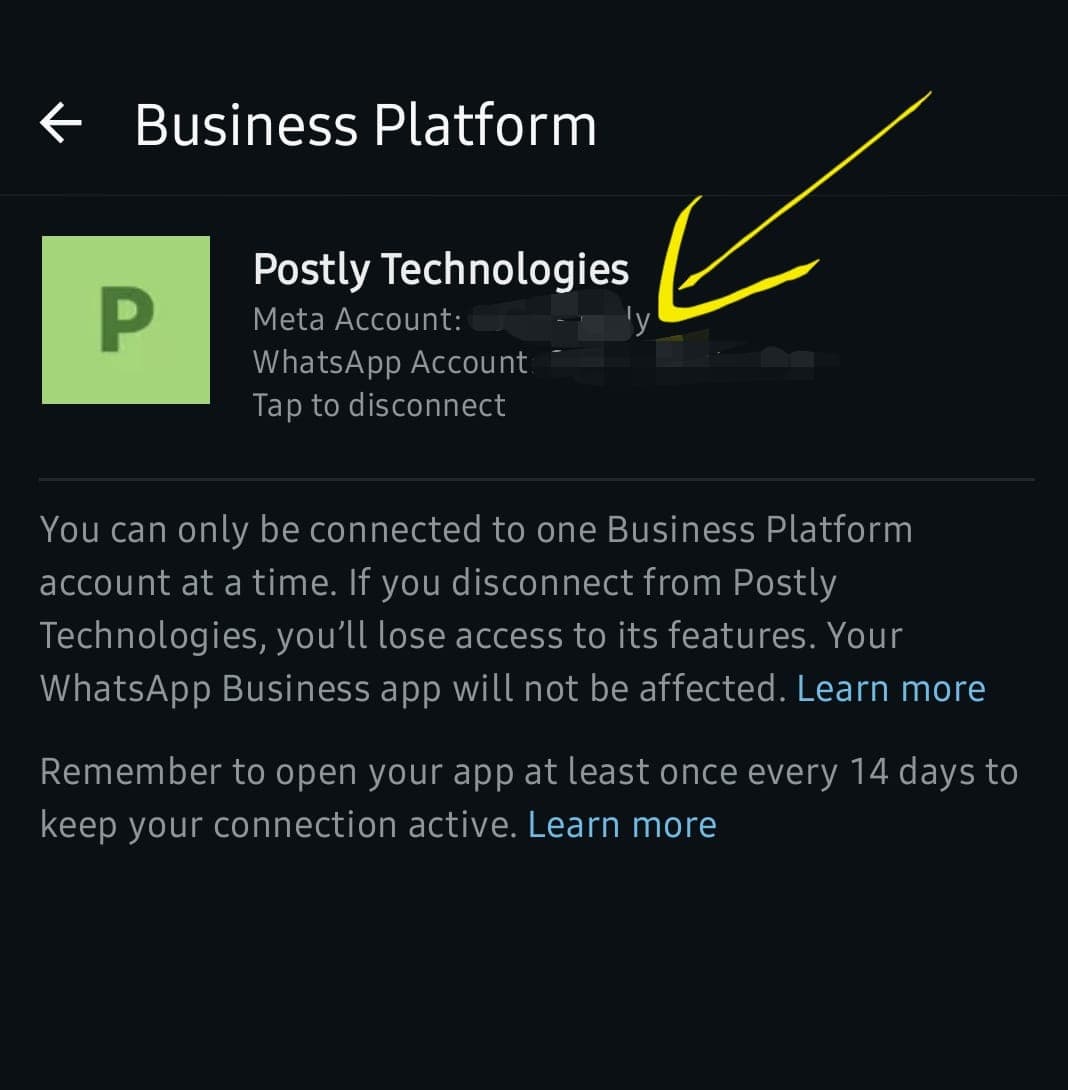
After Meta redirects back, Postly stores the token securely, maps the Business ID, WABA ID and Phone Number ID, registers webhooks and adds the WhatsApp phone number as a publishing channel in the workspace.

Review Meta webhook docs

Screenshot placeholder

Add the screenshot at /images/whatsapp/postly-sync.png

Ownership model

Meta App
Postly
WhatsApp Business Account
User
Phone Number
User
Meta Billing
User
API Tokens
Postly
Webhooks
Postly
Messaging Logic
Postly

What Postly receives after signup

Access token
WhatsApp Business Account ID
Phone Number ID
Business ID
Webhook events for replies and status updates

Publishing Process

Reuse the Editor, add WhatsApp-specific controls

WhatsApp can be selected alongside social channels, but the send model is contact-based. The Editor handles template selection, while Preview handles contact-list selection.

Channel shown in Postly

WhatsApp — +1 555-123-4567

The channel is the phone number. No WhatsApp groups, feeds or pages are connected.

01

Select WhatsApp as a channel

WhatsApp appears beside Facebook, Instagram and other connected channels. The channel identity is the connected phone number, not a group, feed or page.

02

Select a template in the Editor

Template selection is mandatory for all WhatsApp publishing. Users choose an approved template and fill the required variables before sending.

03

Select contact list in Preview

The Preview section shows a contact-list dropdown. Users select an existing saved list; no contact editing happens during publishing.

04

Publish and track status

Postly sends one WhatsApp message per contact and shows simple publishing status: sent, delivered, read or failed.

Contact Management

Contacts must exist before publishing

Users do not edit recipients while publishing. They upload, save and label contact lists first, then select an existing list from the Preview panel.

User must upload contacts before publishing.
User must save and label the uploaded contacts as a contact list.
Publishing only selects an existing contact list from Preview.
Active contact lists must be set at workspace level for Bulk Post.

Preview panel selector

[ Select Contact List ▼ ]

Bulk Post: CSV and Google Sheets

Use send_to_whatsapp with active contact lists

CSV and Google Sheets are the only bulk posting paths. When a row has send_to_whatsapp enabled, Postly publishes automatically to the active contact lists configured for the workspace.

Review Meta template docs
send_to_whatsappRequiredSet to true to publish the row to WhatsApp.
template_nameRequiredApproved WhatsApp template to send.
language_codeRequiredTemplate language such as en_US.
variable_1...nOptionalPersonalized template values.
media_urlOptionalMedia used by supported media templates.

Publishing Status

Show WhatsApp status like other channels

WhatsApp should follow the same simple publishing-status pattern users already understand from channels like Facebook.

Sent

Message was accepted for delivery.

Delivered

Message reached the recipient device or account.

Read

Recipient read the message when read receipts are available.

Failed

Message could not be delivered or was rejected.

Inbox Required by Meta

Keep replies lightweight but supported

The inbox exists because Meta API behavior requires Postly to handle user replies. The goal is the lightest useful reply surface, not a full support desk.

Minimal inbox scope

Conversation view per contact
Full message history
Reply capability
Sent, delivered and read status visibility

Product Scope

What WhatsApp adds to Postly

WhatsApp extends Postly into template-based business messaging while reusing publishing, contacts, Bulk Post, AI Studio and status tracking patterns users already understand.

WhatsApp Connection

Connect WhatsApp Business through Meta Embedded Signup.

Channel Integration

Show WhatsApp as a connected phone-number channel in Postly.

Editor Reuse

Use the existing Postly Editor instead of building a separate WhatsApp editor.

Template Publishing

Require approved templates for all WhatsApp publishing.

Contact Lists

Require users to upload, save and label contact lists before publishing.

Bulk Post

CSV and Google Sheets use send_to_whatsapp with active workspace contact lists.

Required Inbox

Receive replies because Meta API behavior requires reply handling.

AI Replies

Generate reply suggestions using Postly AI Studio credits.

CRM Export

Export contacts, messages and campaign results in simple flat formats.

CRM Export

Export simple flat datasets

Export contacts, messages and campaign results in compact formats that can be imported into CRM tools.

Contacts

phone_number, name, last_message_at, total_messages

Messages

phone_number, message, status, timestamp

Campaigns

campaign_name, sent, delivered, read, failed

Built into the existing publishing flow

WhatsApp is selected beside social channels, but it uses templates and contact lists because WhatsApp sends messages to recipients, not posts to feeds.

A conversion path with fewer setup traps

Users connect through Meta Embedded Signup instead of copying API keys. Postly handles tokens, webhooks, WABA mapping and phone number sync after onboarding.

Reply handling is required by Meta

Postly includes a lightweight inbox because WhatsApp users can reply to business messages, and those replies must be received, stored and displayed.

FAQ

WhatsApp publishing questions

What is connected as the WhatsApp channel?

The connected WhatsApp phone number is the channel. WhatsApp does not connect as a group, feed or page.

Can users publish free-form WhatsApp messages?

No. For this Postly publishing flow, template selection is mandatory for all WhatsApp publishing to keep the product simple and compliant.

Where does the user choose who receives the WhatsApp message?

The user selects a saved contact list from the Preview section. Contacts are uploaded, saved and labeled before publishing; they are not edited during publishing.

How does Bulk Post work for WhatsApp?

CSV and Google Sheets use the send_to_whatsapp field. When it is true, Postly publishes automatically to the workspace active contact lists.

Why does Postly need an inbox?

An inbox is required because Meta API behavior allows users to reply to WhatsApp messages. Postly must receive and store those replies and show the conversation history.

Add WhatsApp without building a separate editor.

Postly handles Embedded Signup, token storage, webhooks, template-based publishing, contact-list selection, Bulk Post triggers, lightweight replies and publishing status while users keep ownership of their WABA and phone number.

SEO Topic LibraryWhatsApp publishing topicsBrowse topics

These pages are available for SEO discovery and deep links. They target high-intent WhatsApp Business, Cloud API, templates, publishing, CSV, Google Sheets, inbox, analytics and CRM export searches.