Google Sheets Bulk Publishing

CSV, Google Sheets, API and MCP submissions share destination media checks. URL access checks remain in place; file format, size, supported media types, and available dimensions or duration also matter. Bulk errors identify the source row before new rows are scheduled. Replace incompatible files or use Fix images in the Postly channel preview, then review the result. Videos require manual export when incompatible. A limited MP4/MOV header check can identify encoding and reported frame rate; incomplete checks are guidance, not a failed upload or a reason to resubmit an accepted post. Review image and video requirements. Prepare videos for publishing.
Plan, validate, and submit social posts from Google Sheets using the Postly add-on. Choose a workspace and destination for each row, then use an explicit date or NOW to control timing.
Install the add-on, set up your template, fill rows, and publish directly from Google Sheets.
How Google Sheets publishing works
Authenticate once, create the template, fill each row, and submit only after Postly validates destinations, content, and timing.
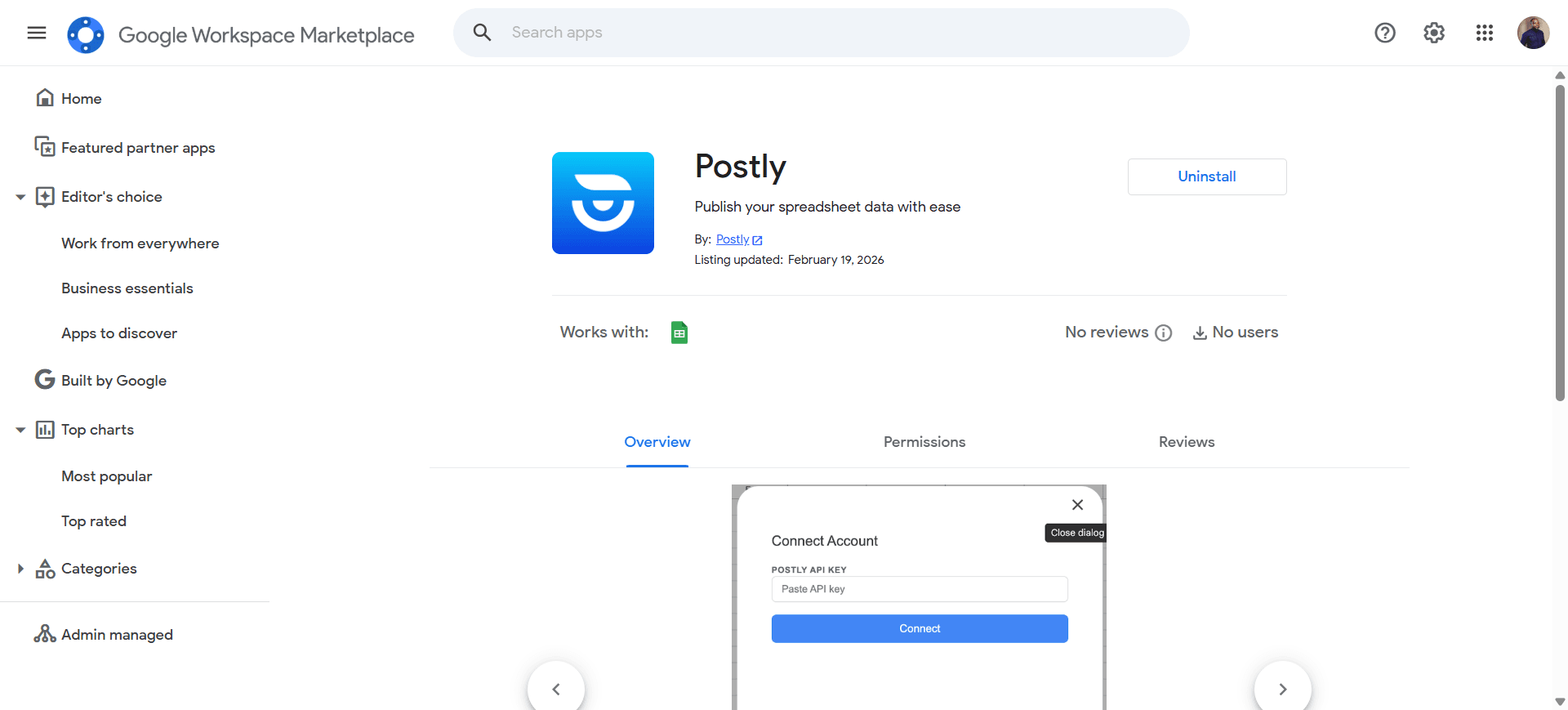
Install the Google Sheets Add-on
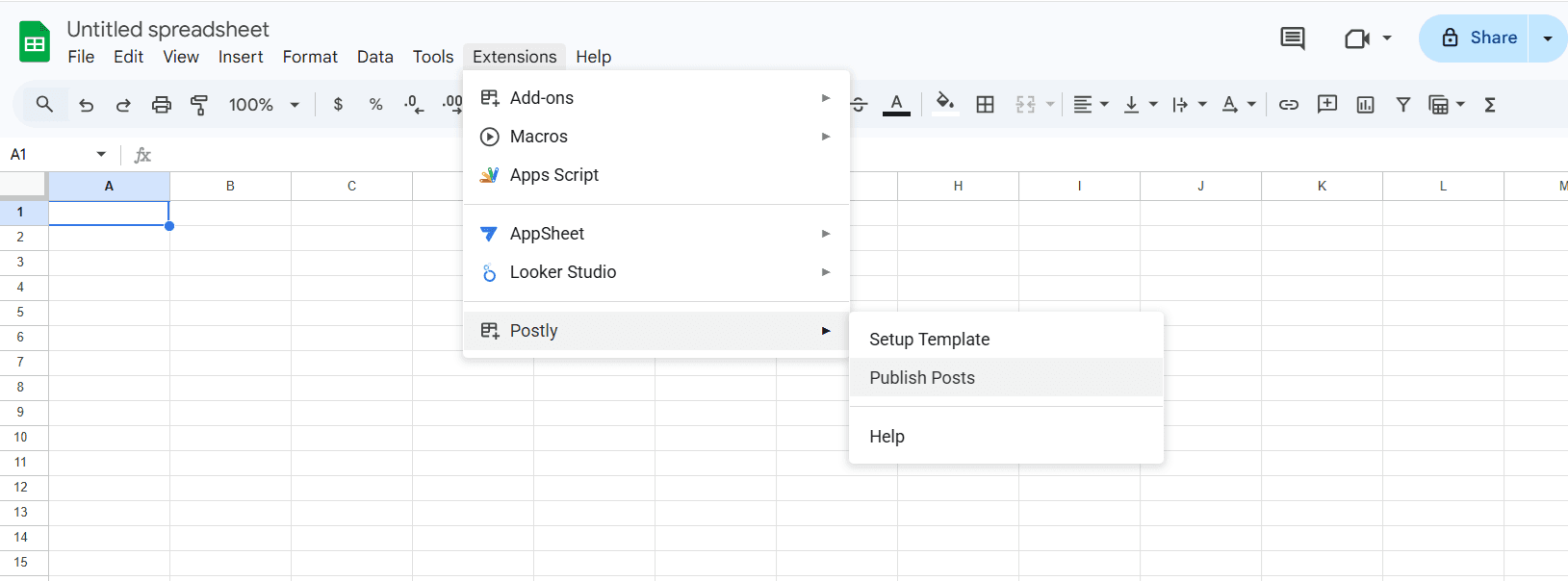
Open Postly in Google Sheets
Add your content (dynamic dropdowns)
- Workspaces are pulled dynamically from your account.
- Platforms are pulled from active platforms within each workspace.
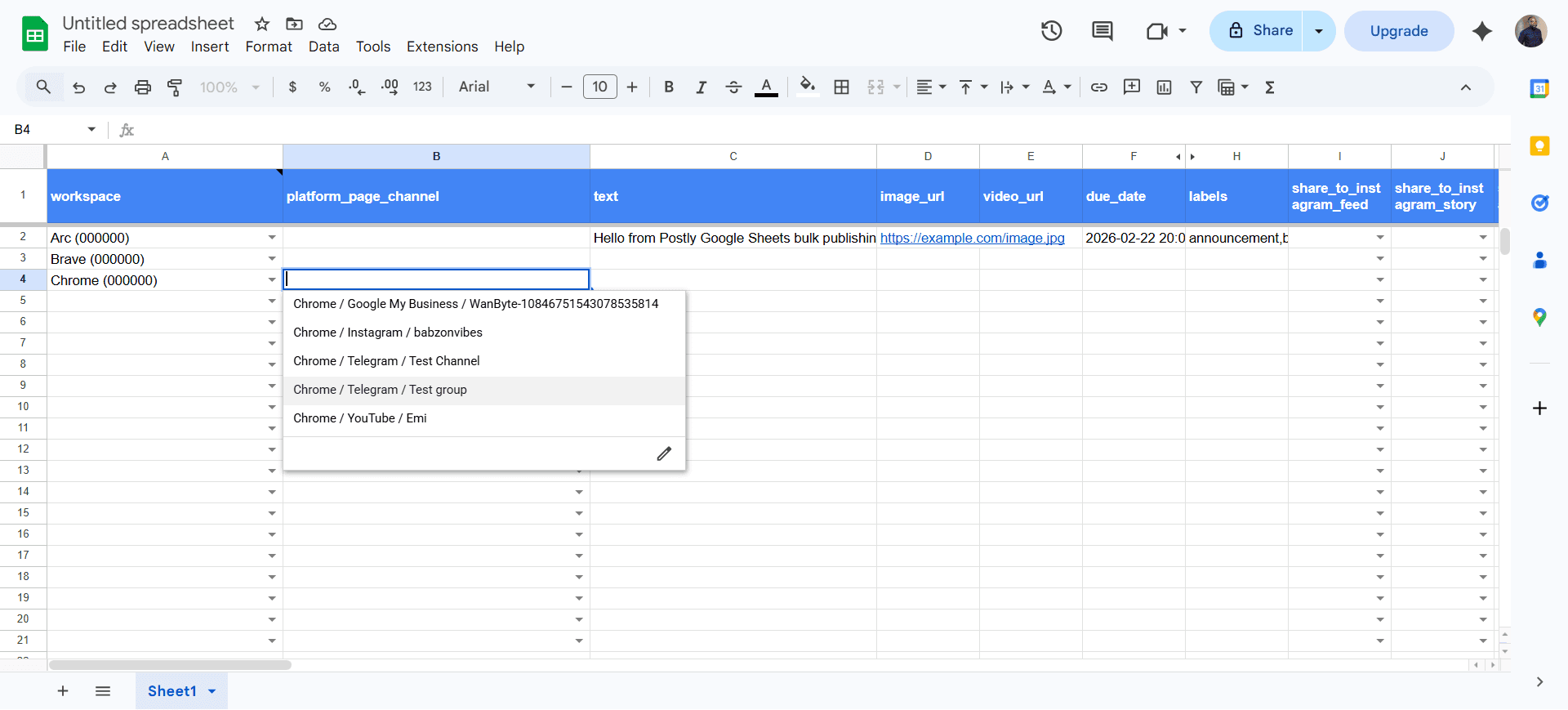
- Platforms are filtered per row: select workspace, then that row’s channel dropdown shows only that workspace’s connected channels. Leave the channel blank to use all matching channels.
- Write shared copy in post_content. Workspaces and channels come from your API key. Optionally narrow destinations using comma-separated, case-insensitive names in platforms; blank uses all connected workspace channels. Use Review / Edit Posts to add or remove channels and adjust content, media, dates or X mode. Prepare the changes, close the popup, then choose Apply review changes from the Postly menu before publishing.
Publish (validations → publish → status)
Facebook Feed Post or Facebook Linked Carousel?
For a normal multi-image feed post, use share_to_facebook_feed=true and up to ten image URLs. This does not create linked cards.
Facebook Linked Carousel is a separate feature with two to ten image cards and a destination URL per card. CSV and Google Sheets currently have no fields for those cards. Create them in the dashboard or use the API/MCP card settings; do not enable share_as_facebook_carousel in a bulk row.
Custom replies (first comment) and timing
Write replies once in the shared columns near the beginning of your CSV or Google Sheet: custom_replies_1 and custom_replies_delay_minutes_1. Shared text and links apply to supported selected platforms. Platform sequences replace shared replies. To customize a platform, use facebook_custom_replies_1 with facebook_custom_replies_delay_minutes_1. Add pairs numbered 2, 3 and onward, up to 50. Replace facebook with instagram, linkedin, youtube, x, threads or bluesky for that destination.
Each delay is whole minutes after the parent publishes: 0 means immediately, 15 means fifteen minutes, 1440 means one day. It is not a delay after the previous reply. The parent uses the workspace publishing timezone. Leave unused reply and delay cells blank.
Facebook, Instagram, LinkedIn and YouTube sample: Read more: https://example.com/page
X, Threads and Bluesky syntax examples:
Read more: https://example.com/page
[image](https://example.com/photo.jpg)
[video](https://example.com/video.mp4)
These are syntax alternatives, not a ready-to-publish combination. Ordinary URLs remain text. Image/video markers attach media on X, Threads and Bluesky. Choose images or one video, not both. Facebook, Instagram, LinkedIn and YouTube replies currently support text and ordinary links only. The starter template uses separate reply columns for text, image and video examples. Replace example content before importing.
CSV preview does not edit replies: change the file and import again. Existing first-comment columns still work, but do not combine old and new reply fields for the same platform. Platform limits and permissions apply.
API and MCP accept top-level custom_replies and custom_reply_modes (shared, custom, or off). Platform overrides use platform_posts[].settings.custom_replies: an array of replies, each with text, optional supported media, and its own delay_minutes. The dashboard uses the same reply timing.
X modes: classic, long_form, thread. Choose one value per row; numbered_thread is also supported. Sensitive X content is permitted subject to applicable laws and X rules, including required labeling.
Custom replies: CSV, Sheets, API and MCP examplesConnect your channels first
Connect all channels you want to publish to in each destination workspace before uploading a CSV or submitting posts from Google Sheets. This includes every account, page, group or location you intend to use. Reconnect any expired connections first.
For CSV, use platforms; no channels column is needed. All matching connected channels are selected automatically. After upload, open each row in preview to add or remove connected channels before confirming.
Google Sheets uses your API key to fetch accessible workspaces and their connected channels. Choose the workspace, then use Review / Edit Posts to add or remove channels for each post. Refresh sources after connecting channels in Postly, and review the selected destinations before confirming.
Post content and platforms
Write once in post_content, then list comma-separated names in platforms, for example facebook,instagram,x. Platform names are case insensitive: Facebook and facebook match. All matching connected channels in the workspace are selected automatically. Edit destinations in preview. Older text and content headers still work.
Templates begin with due_date, platforms, and post_content. Optionally add a campaign_id. Google Sheets loads campaign IDs for the selected workspace; refresh sources to see new campaigns.
Validation shows the character count and limit for each affected platform. In CSV preview, edit Post content or open the row editor to change platform-specific text. In Google Sheets, Publish Posts validates before confirmation and writes over-limit counts and limits into the row error. Edit post_content directly or use Review / Edit Posts, Prepare changes, then Apply review changes; existing platform text overrides can be edited in their cells. Use separate rows for different versions if needed. Validate again after changing text or channels.
The dashboard CSV preview can optimize a flagged row with AI when the workspace owner has unlimited AI text. Limited allowances, such as 20,000 tokens, do not enable this bulk AI action. Manual editing remains available. Review the result before publishing.
View all platform requirements and field examples →
X publishing mode: choose one
classic: one post, with the standard 280-character limit.thread: split longer content into replies. Default when blank.numbered_thread: split into numbered replies.long_form: a long post for eligible X accounts, with thread fallback when needed.
Enter one value in x_publishing_mode. Google Sheets offers a dropdown; CSV cannot preserve dropdowns. The separate Threads platform is selected with threads in the platforms column.
Choose when to publish
Your workspace timezone appliesSchedule for later
2030-09-10 14:30Recommended: YYYY-MM-DD HH:mm
Publish now
NOWQueues immediately, subject to approval
Fill in due_date, then check the timing preview. Blank dates never publish.
International date formats
- USA · month first
9/4/30 2:30 PM- UK / Europe · day first
DMY: 9/4/30 14:30- Year first
2030/9/4 14:30- Month name
4 Sep 2030 14:30
Ambiguous numeric text defaults to US month/day order: 9/4 means September 4. Use DMY: for April 9, or spell the English month. Unambiguous day-first dates such as 14/9/30 14:30 also work.
Use slashes, hyphens or dots, with 24-hour time or AM/PM and optional seconds. Two-digit years mean 2000–2099. Always include a time; date-only text, timezone suffixes, relative dates and raw spreadsheet serial numbers are not accepted.
Google Sheets and timezones
Google Sheets interprets date/time cells using its spreadsheet locale. Postly reads the wall-clock time in the spreadsheet timezone and schedules it in the destination workspace timezone. Text cells follow the international formats above.
No Action or Timezone column is needed. Your calendar display preference does not change text import rules. Existing templates remain compatible. Check the cell, workspace settings and timing preview before sending.
Validation and publishing results
- Correct missing, past, invalid and ambiguous or nonexistent daylight-saving times before submitting. New Date cells start blank. NOW is case-insensitive.
- Review the dates, workspaces, channels and publish-now counts before confirming. Queued, scheduled and awaiting approval do not mean published; delivery is not necessarily instantaneous.
- In Google Sheets, choose Refresh post results to check delivery.
- Retry unchanged rows after an interrupted request to reuse the same posts. Changing a row creates a new submission. Existing posts with missing schedules need correction and never publish automatically as a backlog.
Platform-specific content and destinations
Threads is a separate destination. A row may target Instagram and Threads together, using shared post content. Keep it within the Threads limit, or create a separate row for Threads. Threads settings control replies, quotes, and mentions. The template also includes current settings for Discord, WordPress, Ghost, Hashnode, DEV Community, Blogger, and X. Email and WhatsApp campaigns use their dedicated product workflows and are excluded from bulk-post CSV and Google Sheets imports.
Required fields and Pinterest rows
The dashboard marks genuinely required inputs with a red *. For Pinterest, provide a board plus an image or video. pinterest_title, pinterest_description, and pinterest_destination_url are optional. When the destination column is blank, Postly uses the first non-media link in the Pinterest or shared post text.
These cards match the real flow: install → menu → template → validations → status/errors.
Install Postly from the Google Workspace Marketplace to enable the Postly menu inside Sheets.
Open Extensions → Postly to authenticate, set up the template, publish rows, refresh post results, or get help.
Select a workspace per row. The channel dropdown on that row shows the workspace’s connected destinations.
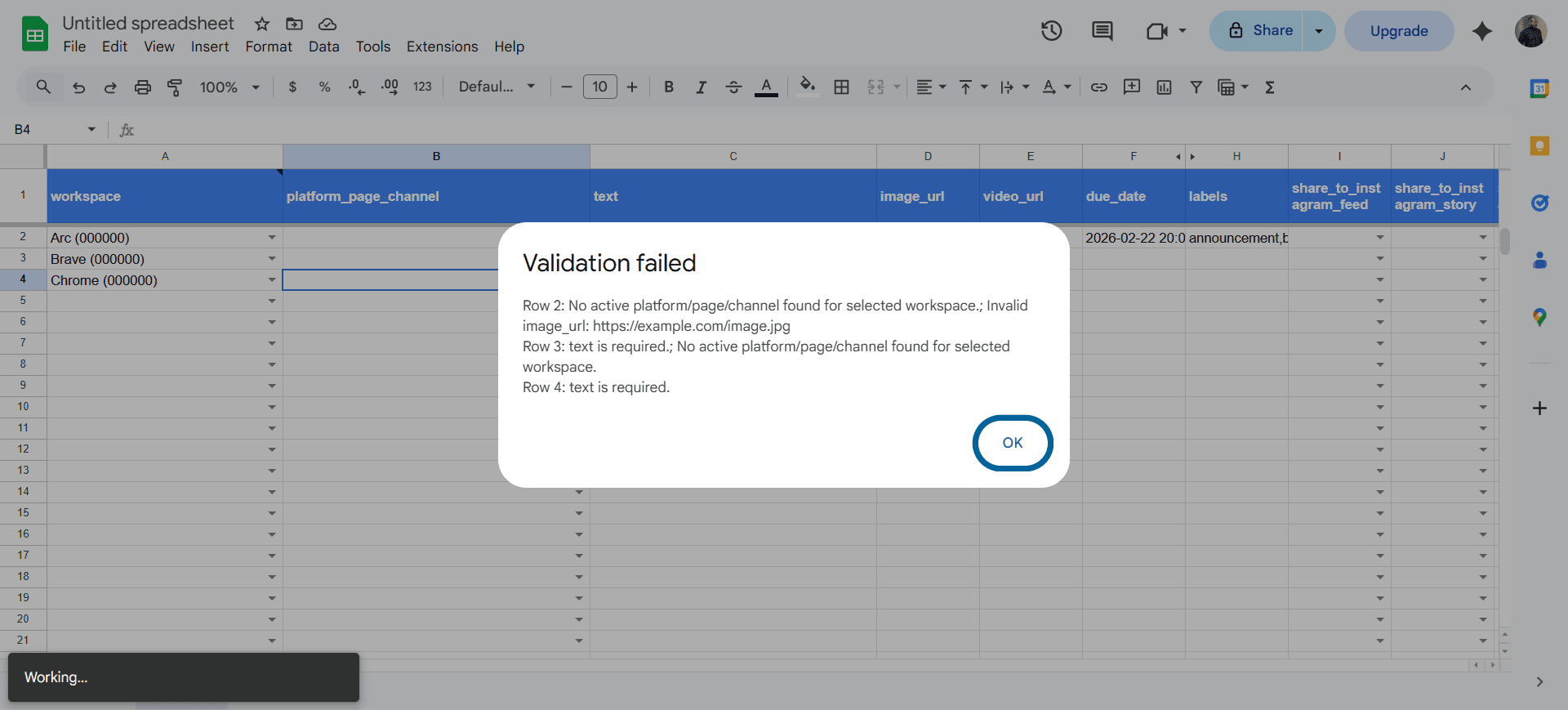
Triggered when the user clicks Publish Posts—Postly validates rows/fields and surfaces issues immediately so teams can fix only what’s broken.
Each row records its current validation, approval, queue, schedule, publish, or failure state plus a clear error when action is required.
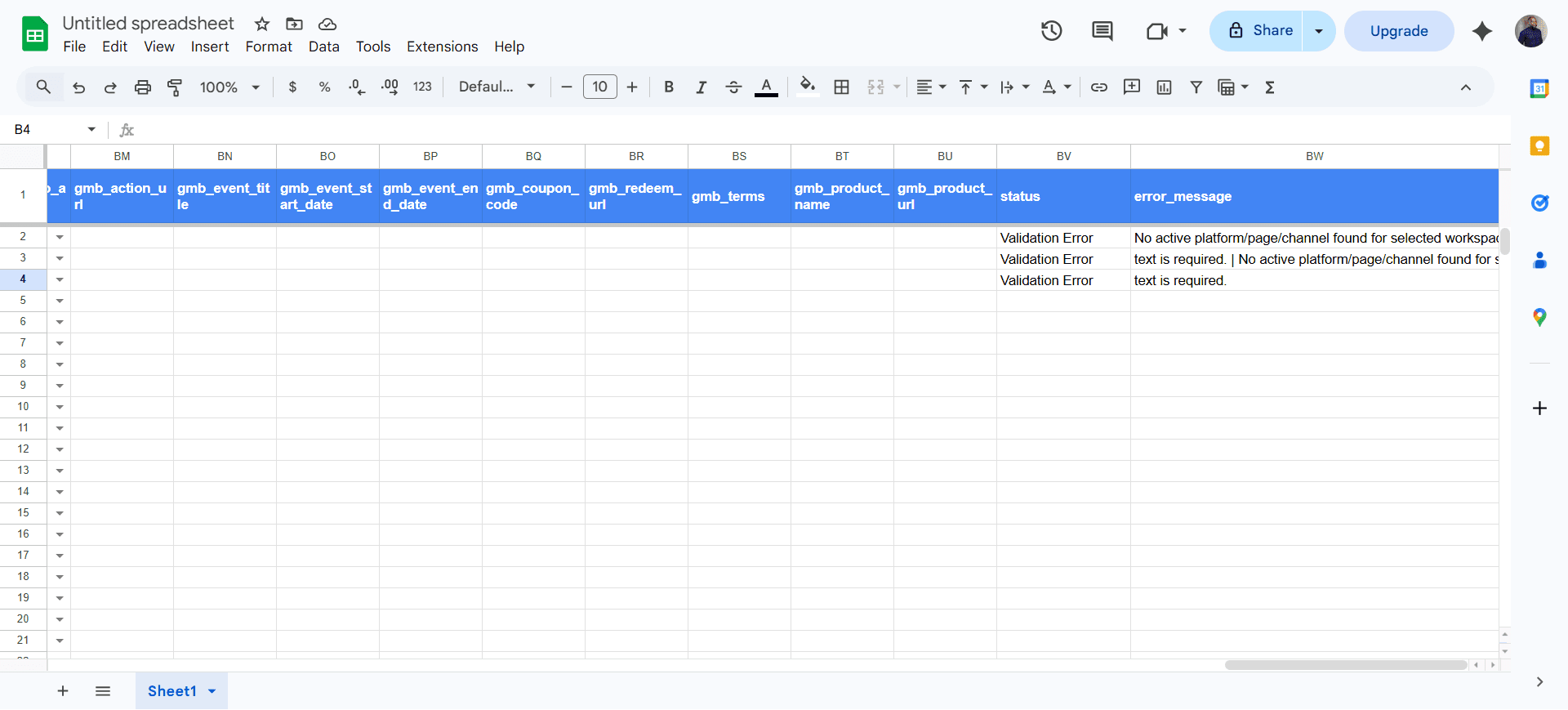
Quick checklist
If publishing fails, it’s usually one of these.
- Add-on installed from Marketplace
- Opened via Extensions → Postly
- Setup Template was run (headers + dropdowns created)
- API key connected in the Postly panel
- Required columns are filled for at least one row (leave the rest blank).
- Every publishing row has a future date and time or NOW; check the date guide for US and international formats.
- Scheduled times use the selected Postly workspace timezone.
- Blank, past, invalid, and ambiguous daylight-saving times are fixed before submission.
- Media URLs are direct/public file URLs (Postly Cloud recommended).
- Platform-specific text fits each destination limit (Threads: 500 characters).
- After submission: refresh and check Status + Errors per row
- Fix failed rows only, then re-publish
Helpful links
Extra references for common publishing questions.