Capture a selected passage
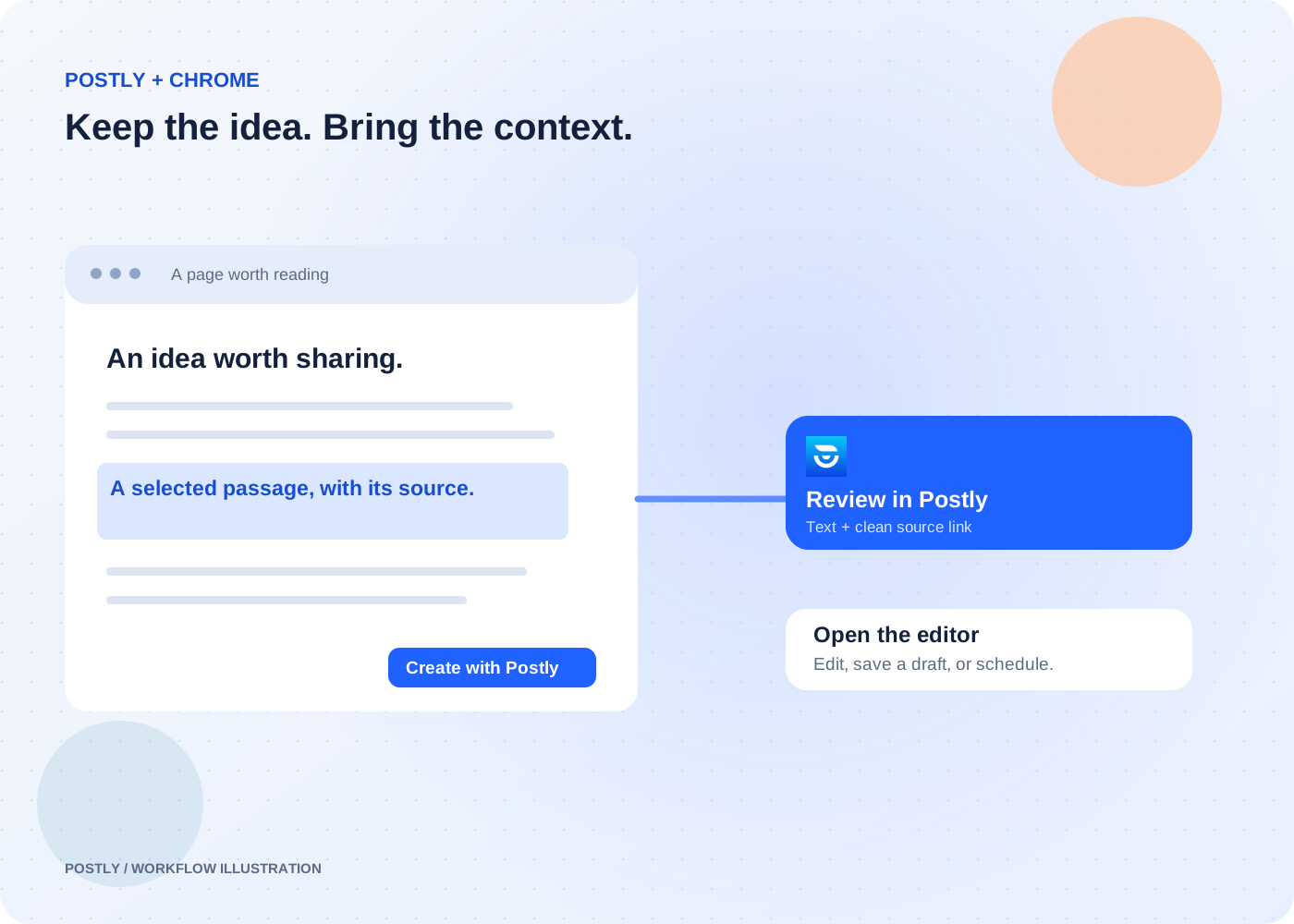
Use the right-click Create with Postly action on selected text.
Postly + Chrome extension
Highlight a useful passage, add your point of view, and bring it into Postly. The source link comes with it, so you can review the context before creating a post.
See the setup guide for current installation availability. Review first. Save or schedule when you are ready.
The outcome
Use the right-click Create with Postly action on selected text.
Open the popup, edit the page-title text into your own note, and choose Review in Postly.
Review the capture and source, then save a draft or schedule through the existing Postly editor.
Choose a passage or write a note about the current webpage.
Open a fresh tab with your capture and a clean source link.
Check the text and source before opening the editor.
Choose your workspace, edit, and save or schedule.
Bring a short reference into your writing flow and add your own commentary.
Read the workflowCapture a page title and link, then write the announcement in Postly.
Read the workflowKeep the useful idea with its source and continue editing when you are ready.
Read the workflowThe extension does not publish automatically. It opens a preview. You choose whether to continue in the editor, save a draft, schedule, or publish using Postly’s normal controls.
No. It does not read the browser’s history database or track your activity across websites. Your chosen capture includes the current page’s clean source address, and capture starts only with your toolbar or context-menu action.
It is scoped to the new Postly tab in Chrome session storage. It expires after five minutes and is removed on consumption or tab closure; expired entries are purged on the next capture or request.
Use a normal HTTP or HTTPS webpage. Browser settings, extension pages, local files, and addresses containing embedded credentials are rejected. Source query strings and fragments are removed.