Schedule Hashnode Articles and Technical Content

Preview, draft, schedule, and automate Hashnode articles with publishing presets, bulk workflows, and Auto Post.
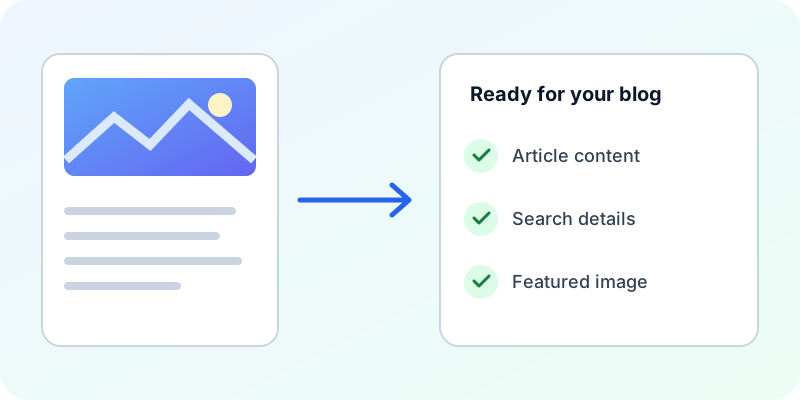
How the workflow works
- Step 1
Create or import a technical article.
- Step 2
Choose the connected Hashnode publication.
- Step 3
Configure tags, series, cover image, and status.
- Step 4
Publish now or choose a one-off or recurring schedule.
Hashnode SEO fields and publishing limits
SEO title, description, canonical URL, and Open Graph image are supported for both drafts and published articles.
Images in Hashnode articles
Set a cover image and an optional Open Graph image. Images within the article use the destination-specific media selection. Check the destination preview after publishing. A cover image and a social preview image serve different purposes; supply each supported field deliberately.
Publish through CSV, Google Sheets, API or MCP
Start with a fresh platform-specific template in Bulk Post before each batch. Google Sheets uses the platform's column names, while API and MCP requests use its settings object. Unsupported SEO fields are reported so you can correct the request before publishing. Use the cross-channel field guide below for the exact names.
Check the live article before repeating a request
Open the returned article URL and review the title, images and supported metadata. For cross-posts, use the original article URL as the canonical URL where available. If a post exists but a setting needs attention, correct that post; submitting it again may create a duplicate. Search engines can rewrite snippets, so compare the actual page metadata rather than only its search result.
Frequently asked questions
Which SEO settings can I send to Hashnode?
SEO title, description, canonical URL, and Open Graph image are supported for both drafts and published articles.
Can I bulk publish Hashnode articles with images?
Use a fresh platform-specific CSV template or Google Sheets. Set a cover image and an optional Open Graph image. Images within the article use the destination-specific media selection.