Google Sheets Bulk Publishing
Publish at scale from Google Sheets using the Postly add-on. This page is a clean guide to the workflow: install → setup template → fill rows → publish.
Install the add-on, set up your template, fill rows, and publish directly from Google Sheets.
How it works (Global steps)
This is the core workflow. The sheet starts blank — “Setup Template” creates headers and dropdowns so users can fill rows correctly, then publish with validations + status feedback.
Install the Google Sheets Add-on
Open Postly in Google Sheets
Add your content (dynamic dropdowns)
- Workspaces are pulled dynamically from your account.
- Platforms are pulled from active platforms within each workspace.
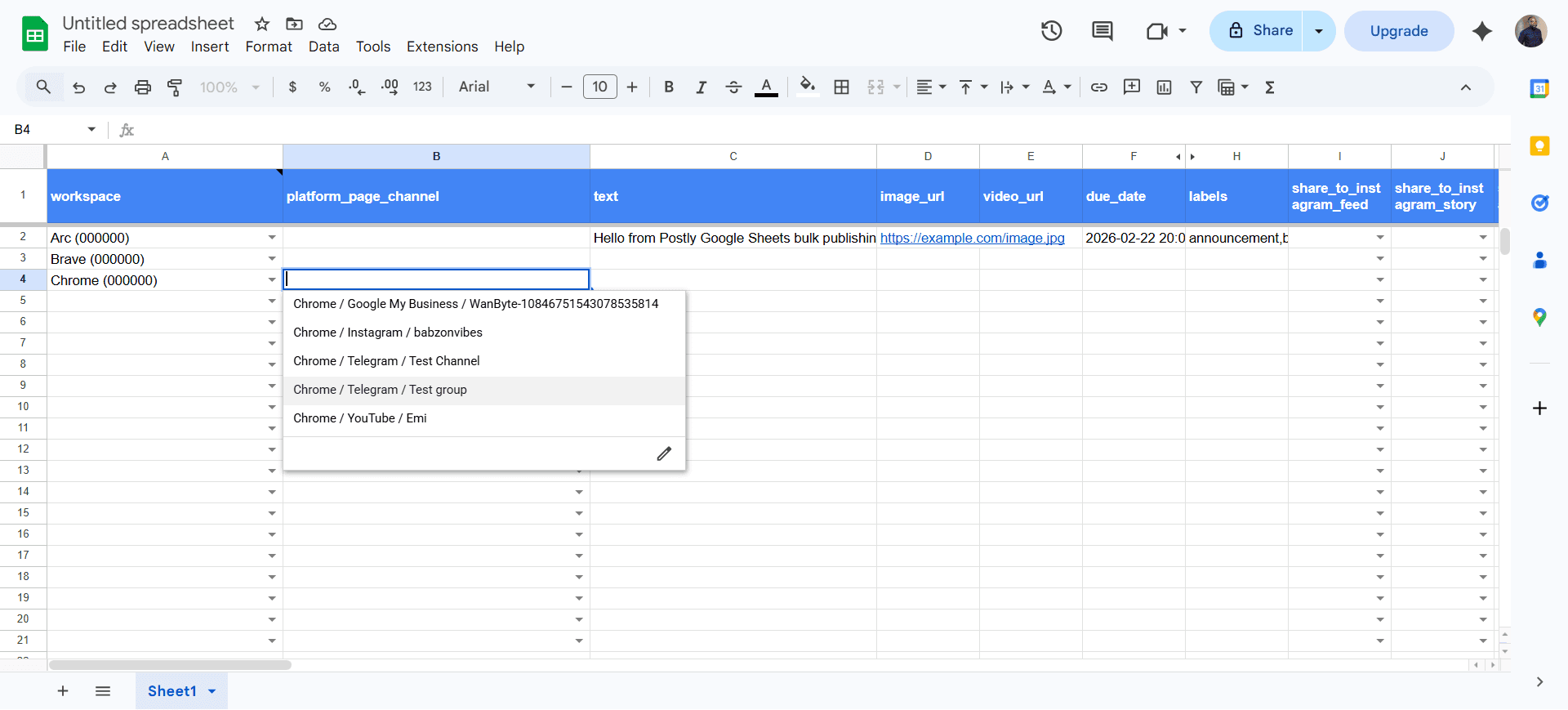
- Platforms are filtered per row: select workspace, then that row’s platform dropdown shows only that workspace’s platforms.
- Use text as the shared version and destination columns such as threads_text for platform-specific copy. Blank overrides fall back to the shared text.
Publish (validations → publish → status)
Threads is a separate destination. A row may target Instagram and Threads together, while threads_text supplies the shorter Threads version and the Threads columns control replies, quotes, and mentions. The template also includes current settings for Discord, WhatsApp, WordPress, Ghost, Hashnode, DEV Community, Blogger, and X.
These cards match the real flow: install → menu → template → validations → status/errors.
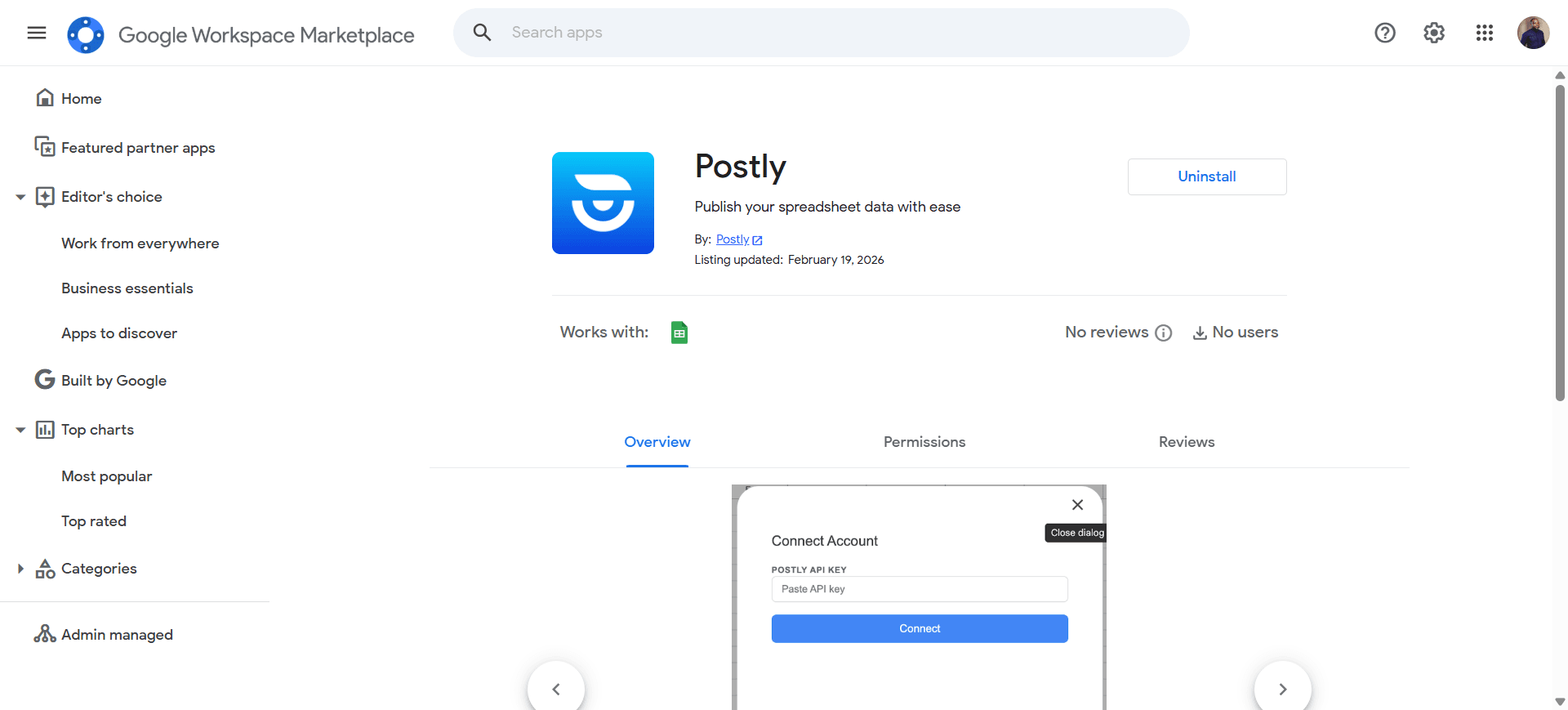
Install Postly from the Google Workspace Marketplace to enable the Postly menu inside Sheets.
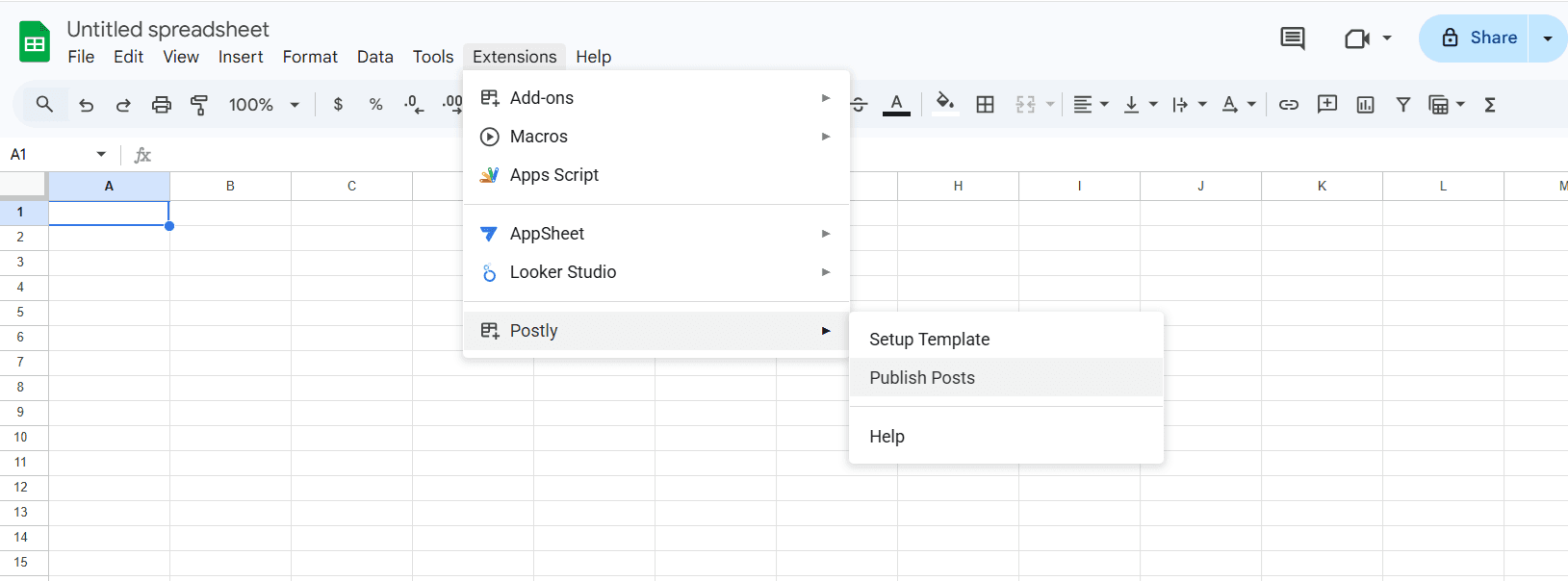
Open Extensions → Postly to access Setup Template, Publish Posts, and Help.
Select a workspace per row. The platform dropdown on that same row auto-filters to that workspace’s active platforms.
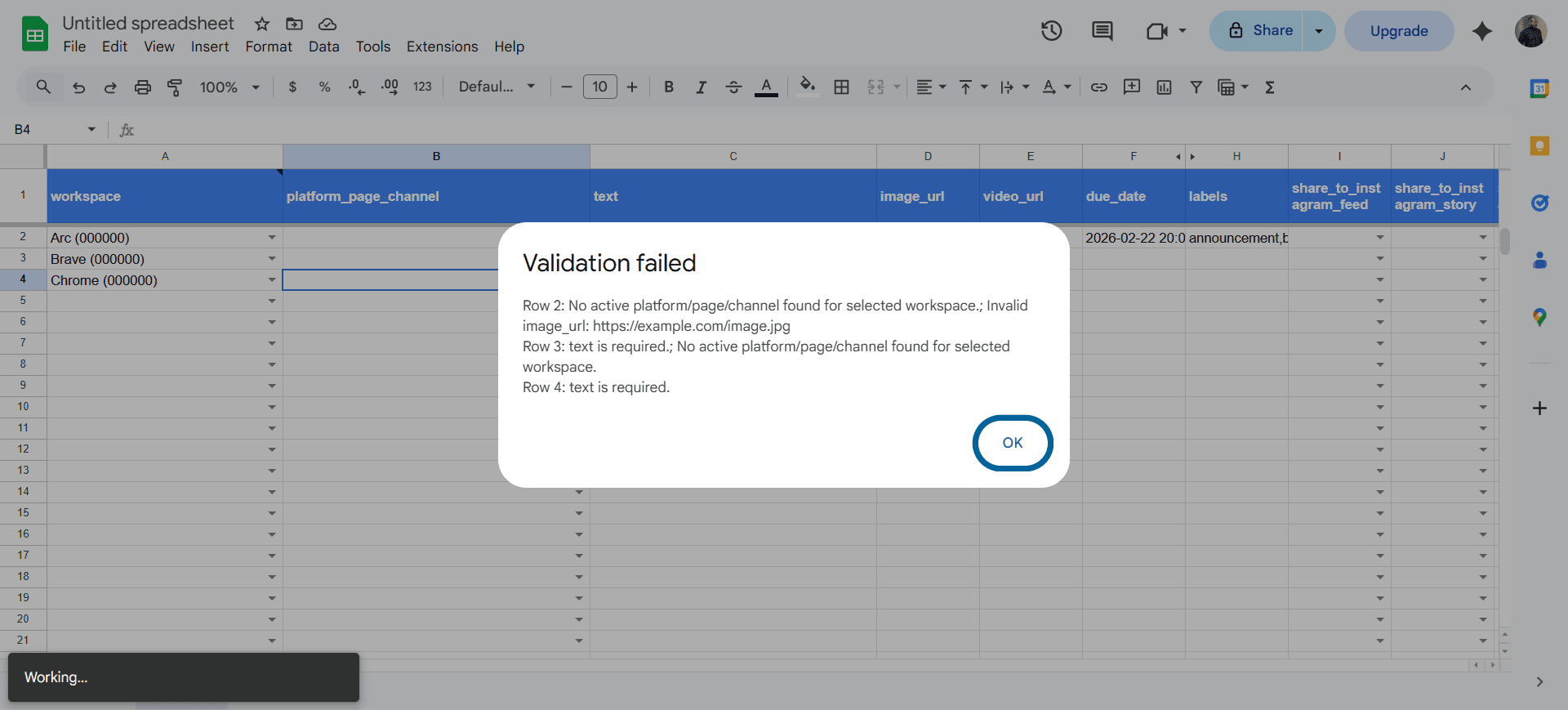
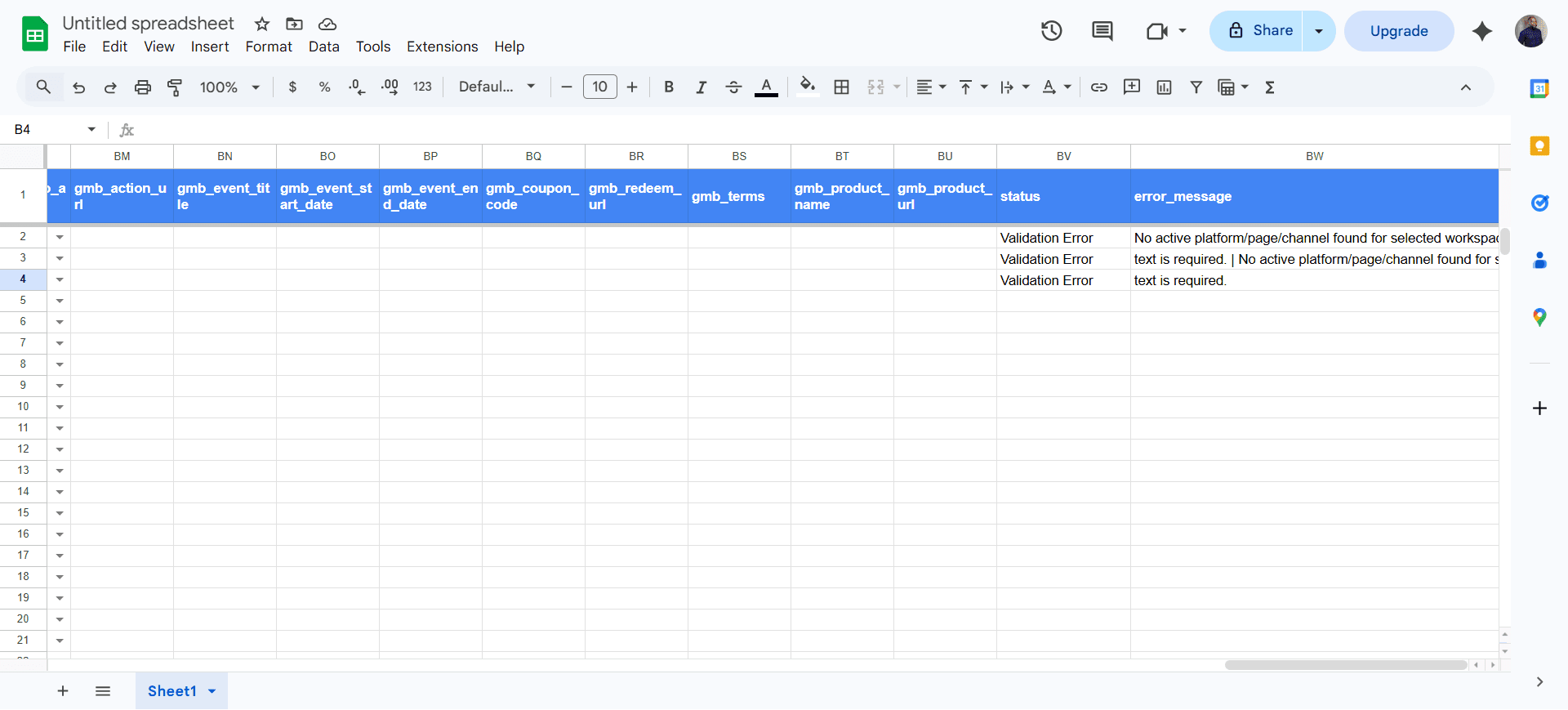
Triggered when the user clicks Publish Posts—Postly validates rows/fields and surfaces issues immediately so teams can fix only what’s broken.
After the job runs, each row shows Status (Published/Failed) plus Errors that explain what to change before re-publishing.
Quick checklist
If publishing fails, it’s usually one of these.
- Add-on installed from Marketplace
- Opened via Extensions → Postly
- Setup Template was run (headers + dropdowns created)
- API key connected in the Postly panel
- Required columns are filled for at least one row (leave the rest blank).
- Media URLs are direct/public file URLs (Postly Cloud recommended).
- Platform-specific text fits each destination limit (Threads: 500 characters).
- After publish: check Status + Errors per row
- Fix failed rows only, then re-publish
Helpful links
Extra references for common publishing questions.